Raise a kid who puts the phone down.
Not because you took it. Because they chose to.
Set the day’s limit together. They earn coins for sticking to it, build streaks they don’t want to break, and start making the call themselves.
Two ways to start
Whether the phone is theirs or yours.
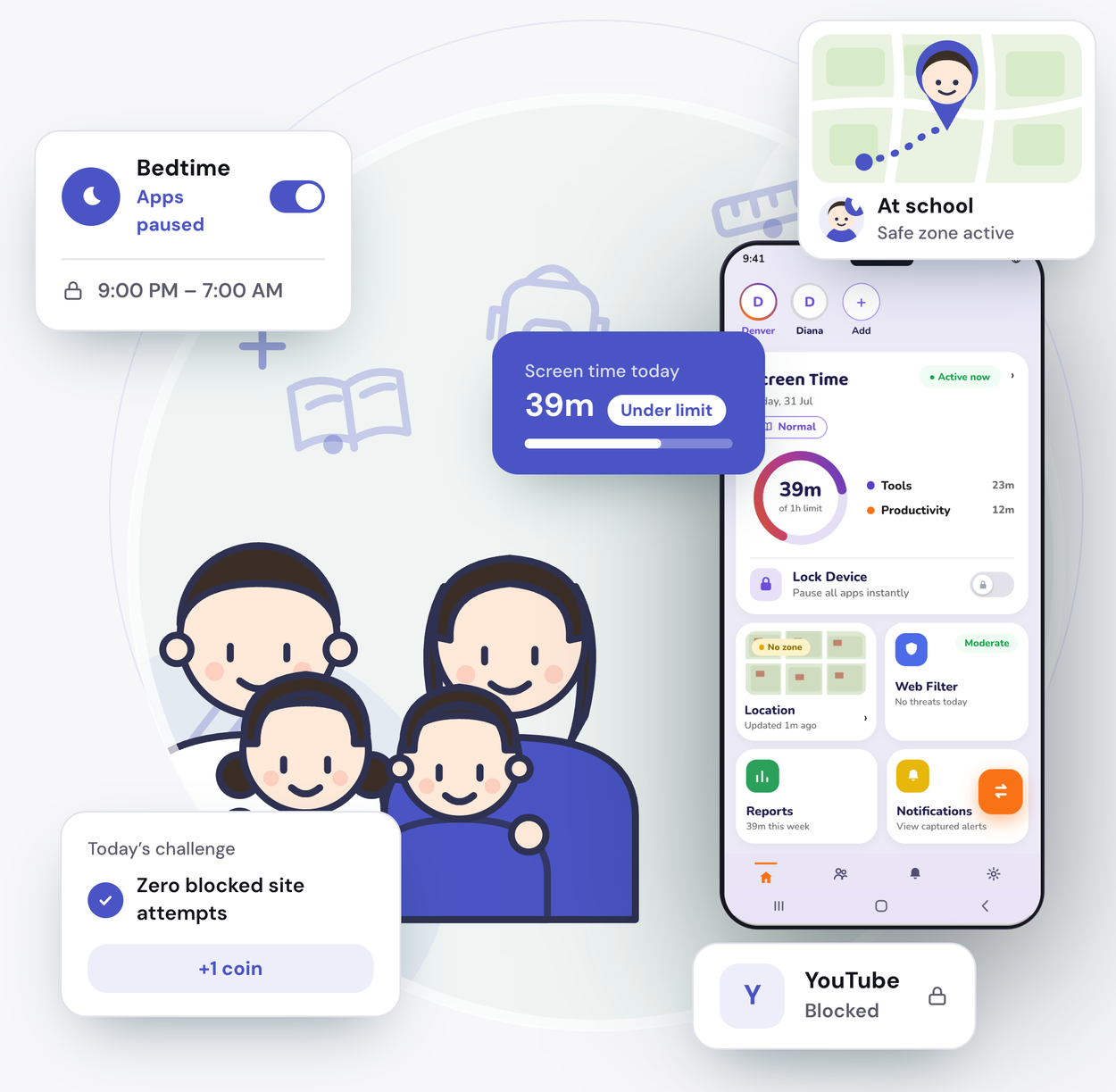
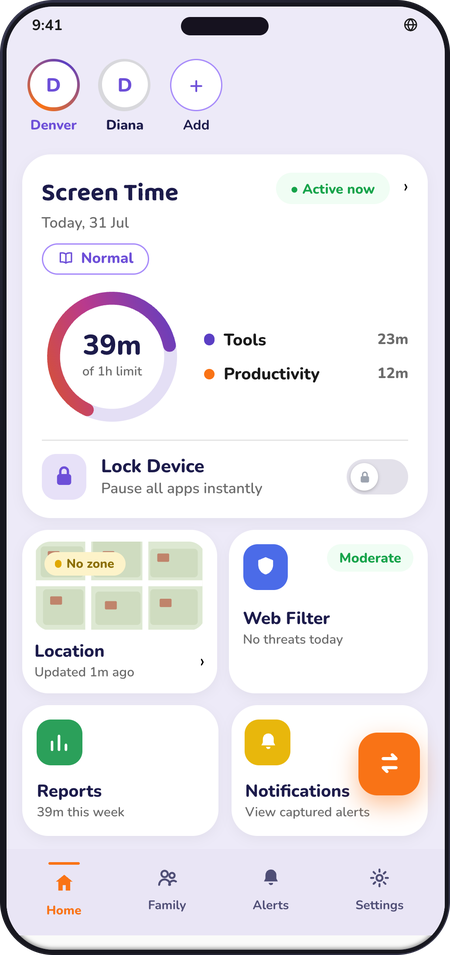
Either way, everything after setup is the same — limits you set together, modes for exam weeks and holidays, and rewards your child actually wants.
They use your phone
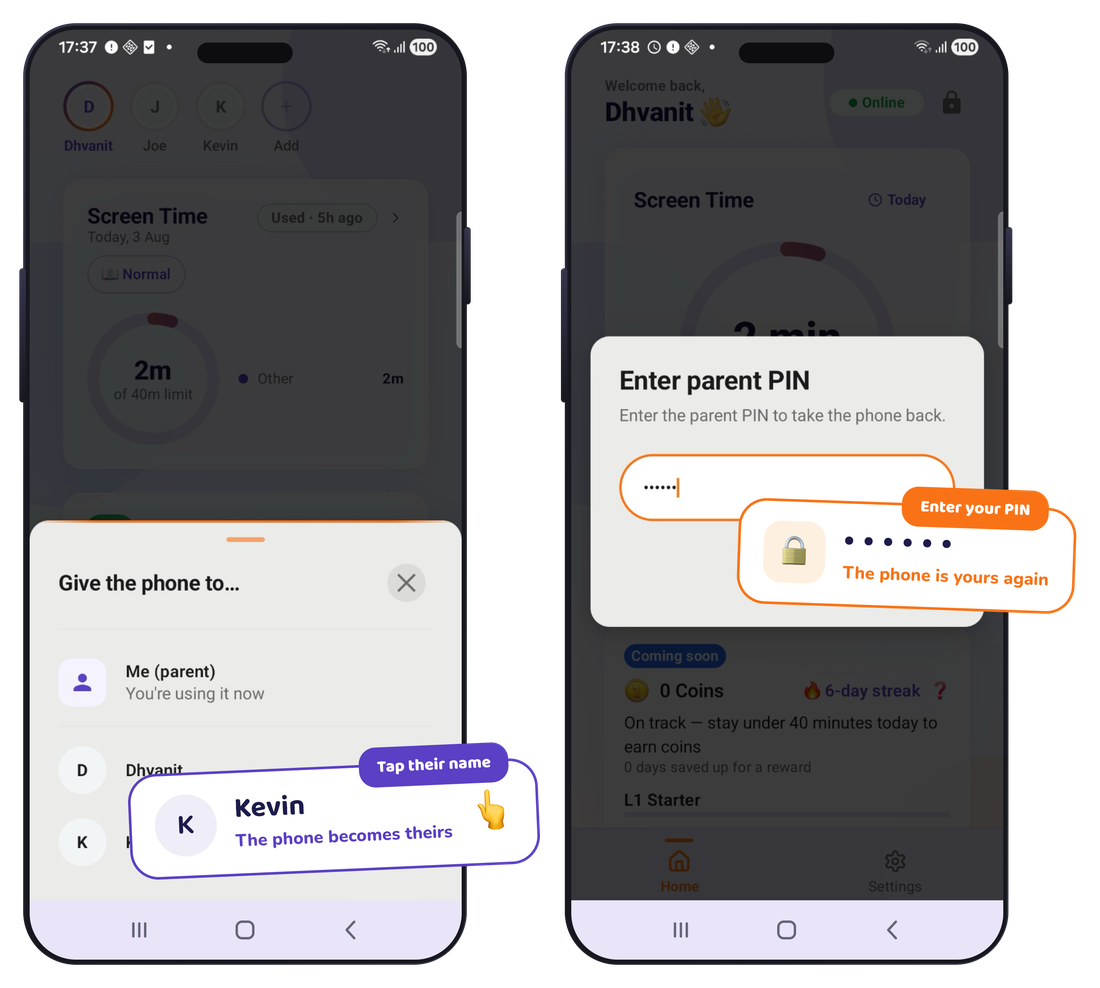
Set your child up on yours. One tap hands it over, your PIN takes it back.
They have their own
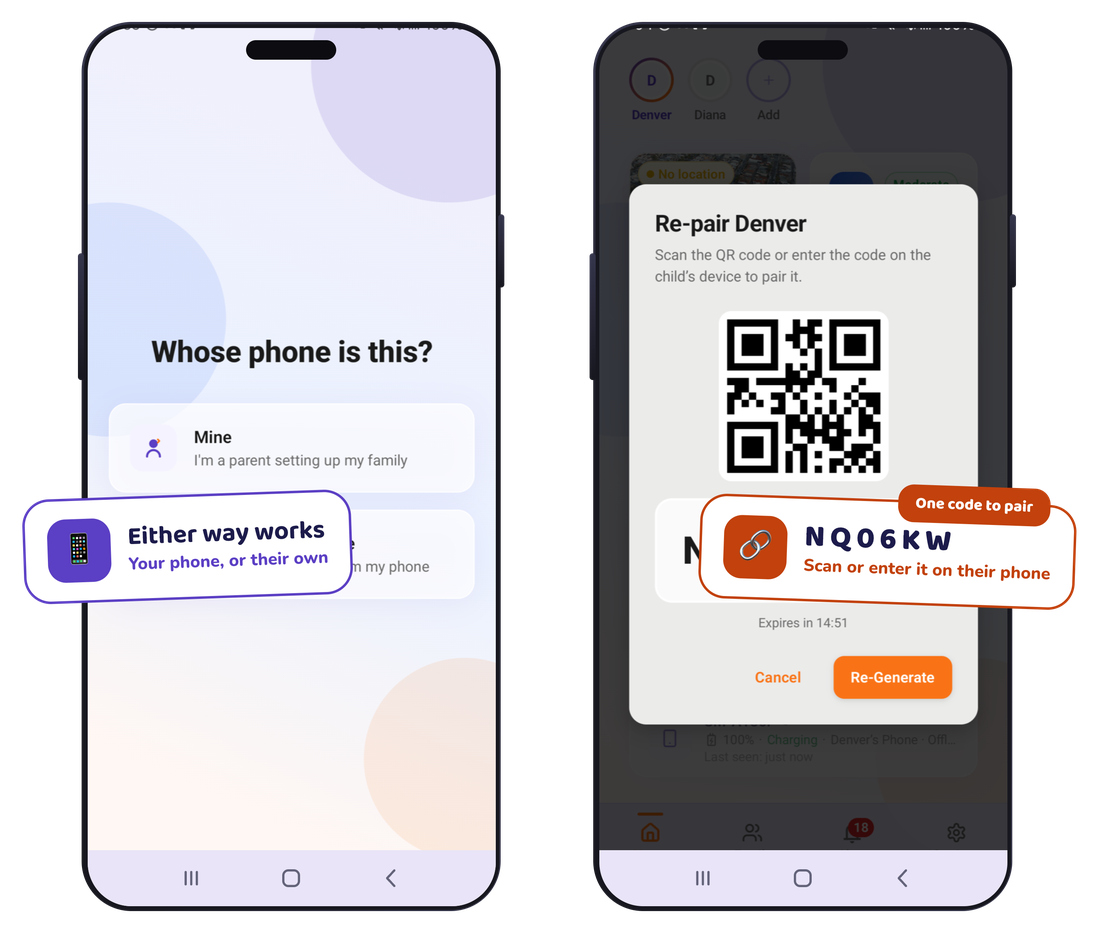
Scan one code to connect their phone. You set everything from yours.
Built for shared phones
When they use your phone
Your phone. Their space. One tap.
You don’t need to buy a second phone. Set your child up on yours. Tap once to hand it over — they get their own apps, their own time, their own rewards. Type your PIN to take it back. You choose which of your apps they can open.
Tap once
The phone becomes theirs.
Their space
Their apps, their time, their rewards. Each child gets their own.
Your PIN
Type your PIN. The phone is yours again.
Good habits start before they own a phone. This is where they learn them.
When they have their own
Their own phone works the same way.
Scan one code from your phone to connect theirs. After that, everything is set from yours.
Scan one code
Their phone connects to yours in a moment.
Set their day from yours
The daily limit, which apps, and when the phone winds down.
See what happened
Their screen time and the apps they used, on your phone.
Not sure yet? Pick either one. You can change it later.
What it does
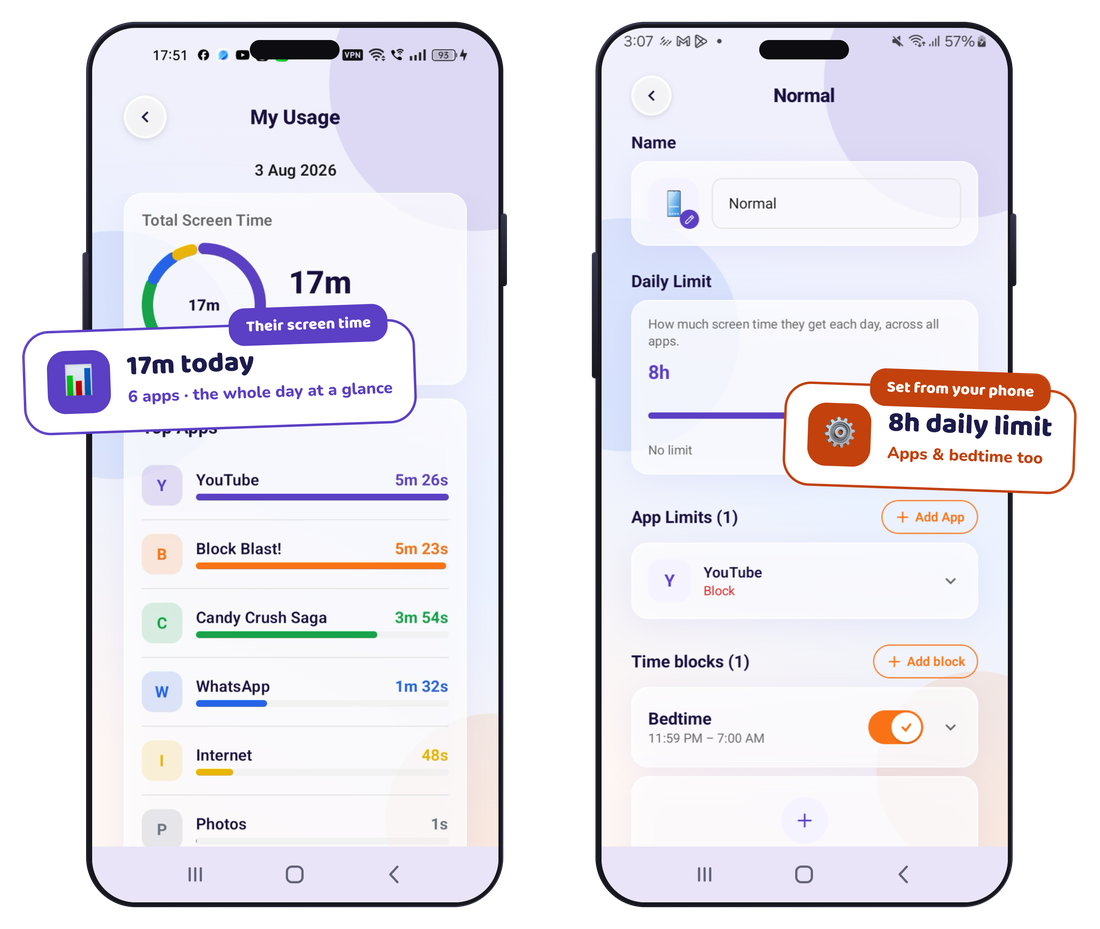
Set it once. It holds without you in the room.
A daily limit that holds
When the day’s time is used up, the phone winds down on its own. Nothing to negotiate at the door.
One simple choice per app
Allow it, limit it, or block it — and mark the ones that should stay open no matter what.
Bedtime
The phone winds down on the schedule you set, every night, without you having to remember.
They ask, you decide
Need twenty more minutes? Your child sends a request and you answer from your phone. The conversation replaces the argument.
Web filtering, on the device
The corners of the internet you’d rather they didn’t find yet, filtered on the phone itself — and it holds up against the usual workarounds.
Safe zones
A quiet note when they reach school or get home. Not a map you have to sit and watch.
For your child
The part your child actually likes.
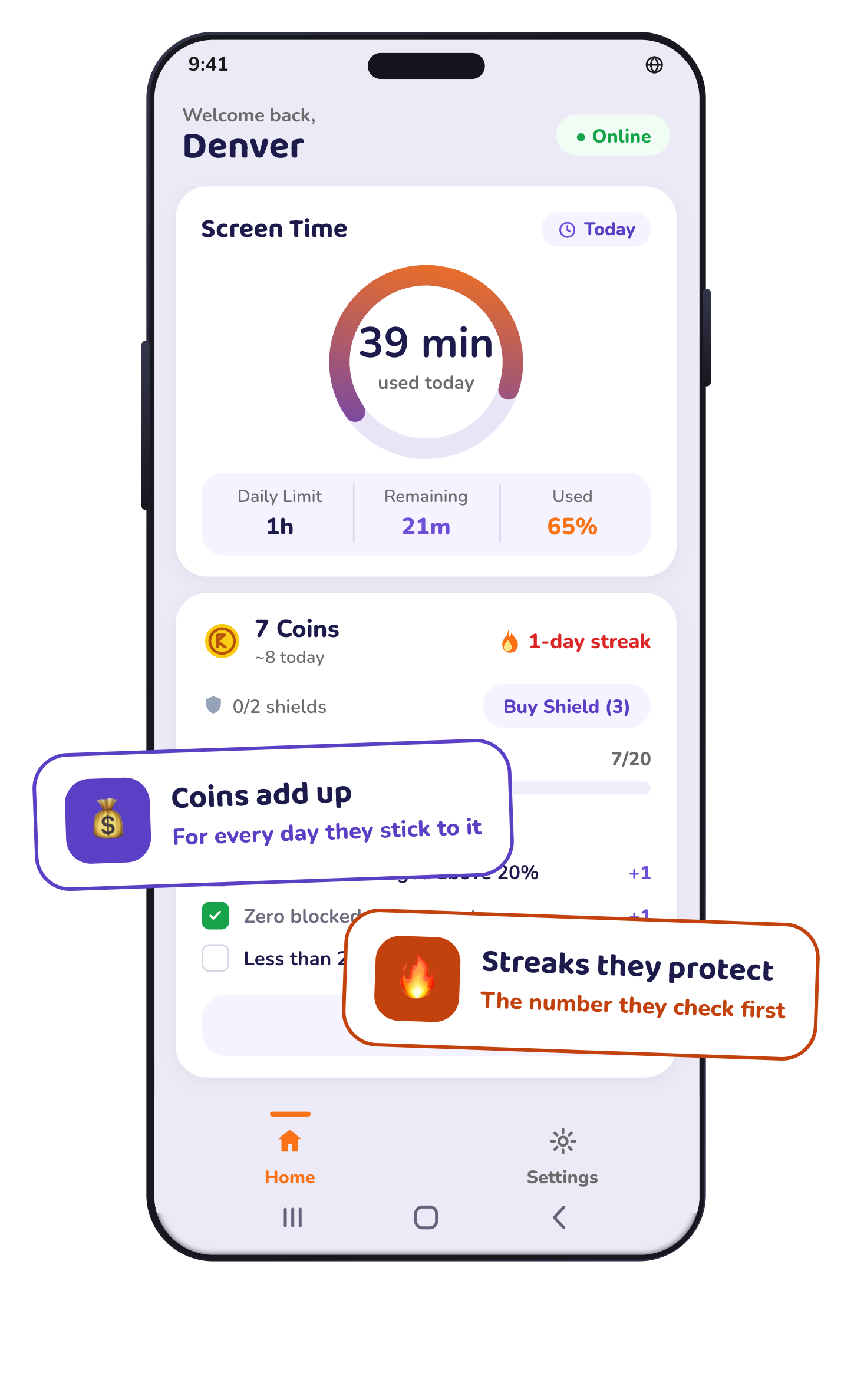
A limit on its own teaches nothing — it just moves the argument. So KidMoat gives your child something to build. They earn coins for sticking to what you agreed together, keep a streak going, and spend what they earn on a reward you chose — an ice cream, a trip to the park, an hour of cricket. A child saving for something real starts making the call themselves. That is the habit you were after.
Coins
Earned for sticking to what you agreed together.
Rewards
Real things you hand over, priced in coins or in days in a row.
Streaks
Days in a row. The number they check first.
Levels
Progress they can see, so the goal is theirs.
Ready to go
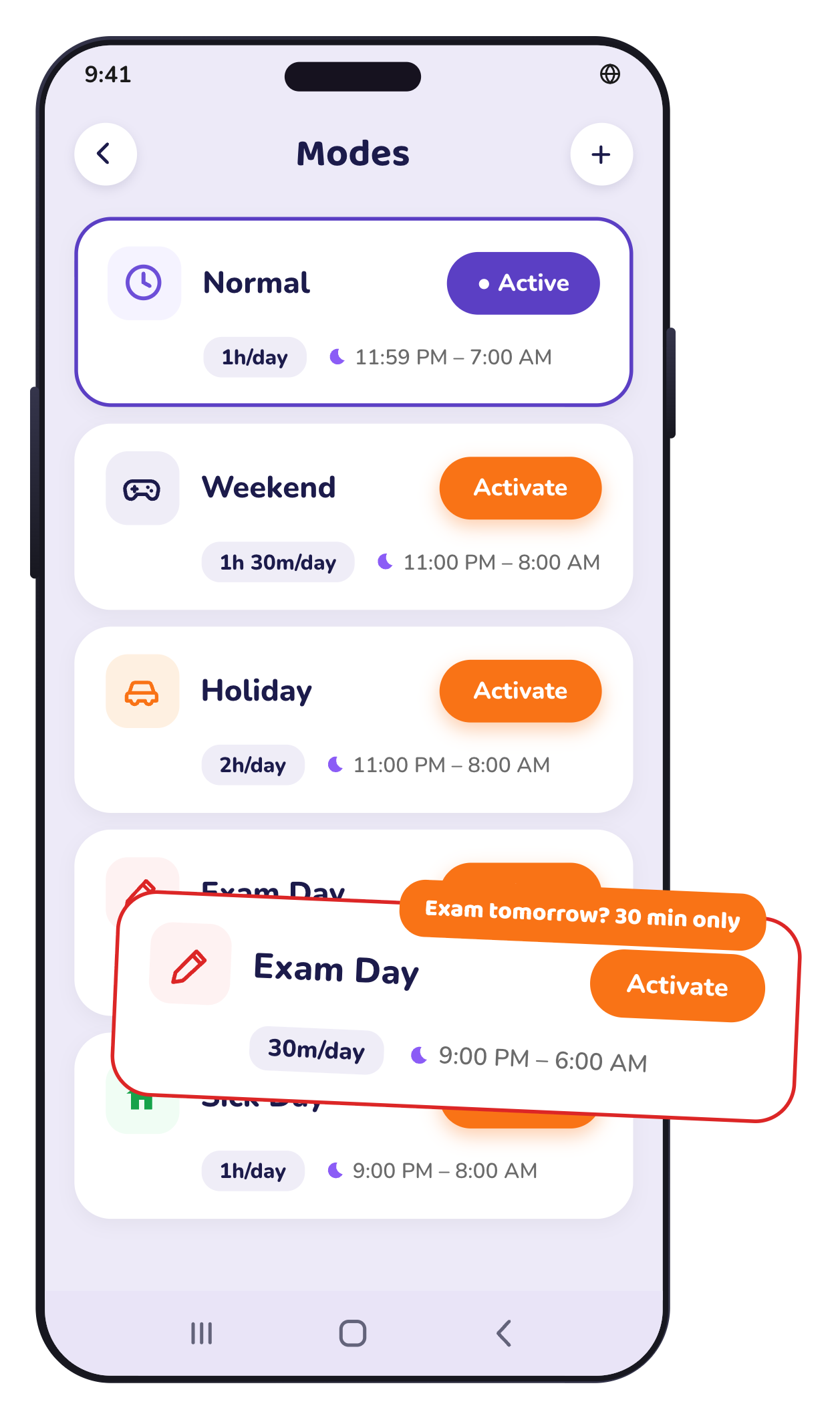
Exam week shouldn’t look like a Sunday.
Six ready-made days come set up. Tap one and every rule moves with it — the day’s time, which apps are open, when the phone winds down. You’re never editing settings at nine at night.
Normal
Weekend
Holiday
Exam Day
Sick Day
Screen-Free Day
Visible, not secret
Parental control should never be secret.
Some apps sold as parental control conceal themselves or collect more than families expect. KidMoat is built around a different principle: protection should be visible, clearly explained, and limited to the features a family chooses to use.
Nothing is hidden
KidMoat appears on your child’s phone under its own name. No disguises, hidden icons, or fake ‘system service’ names.
No secret capture
KidMoat does not secretly activate the microphone or camera, or copy private messages into a remote dashboard.
Clear rules, visible protection
Parents set the boundaries, children can see that KidMoat is present, and the rules are not disguised as something else.
Setting up
Set up in the time it takes them to finish a snack.
Installing takes a minute. The part that matters takes longer, and it isn’t the app.
Install
One app. It is both the parent side and the child side.
Pair
If your child uses your phone, there is nothing to pair. If they have their own, scan one code.
Agree together
Sit down with your child and set the first day’s time together. That conversation is the point of all of this.
No account for your child. No second phone to buy.
The research
You’re not imagining it.
The Digital Childhood Report, Global Edition — March 2026. Sourced from WHO, American Academy of Pediatrics, Common Sense Media, the U.S. Surgeon General, CDC, JAMA Pediatrics.
2h 27m
average daily screen time for children aged 0 to 8
Common Sense Media, 2025 Census — nationally representative US survey of parents40%
of children have their own tablet before they turn two
Common Sense Media, 2025 Census — by age eight, one in four has their own phone“Screens aren't the enemy. In the right doses, with the right content, and with your involvement, they can be wonderful tools. The problem starts when screens replace what children need most — play, conversation, sleep, and the beautiful boredom that sparks creativity. …”
What it costs
The same product, three ways to pay.
One plan, three ways to pay for it. The longer you commit, the more children it covers.
Prices are shown without GST. GST (18%) is added at checkout.
Monthly
Up to 2 children
Renews automatically every month until you cancel
Quarterly
Up to 5 children
Save 25%
Renews automatically every 3 months until you cancel
Yearly
Best offerUp to 10 children
Save 50%
Renews automatically every year until you cancel
Every plan includes everything
- Screen time limits and schedules
- Per-app limits and screen time modes
- Web content filtering
- Location and safe zones
- Coins, rewards and streaks
- Daily and weekly reports
- Co-parent access
Your free trial starts when you pair your first device — no card needed. Payments are handled securely by Razorpay. Cancel any time: you keep full access to the end of the period you have paid for.
Questions
The questions parents actually ask
Does KidMoat read my child’s messages?
Not the conversations themselves — KidMoat never opens your child’s chats, listens to calls, or records the screen. What it does see is notification previews, which for a messaging app means the sender and the first line. You can set words worth knowing about, and KidMoat flags those for you. What a notification shows is the whole of what KidMoat sees; nothing behind it is captured.
How long do you keep my child’s data?
Where they have been is kept for 30 days, then deleted automatically — we do not build a long history of your child’s movements. Screen-time and activity reports are kept for 90 days so the weekly summaries have something to compare against. You can delete everything at any time from Settings, and we will not keep a copy.
Can my child uninstall it?
They can — and you will know the moment it happens, because KidMoat tells you protection was switched off. We would rather say that plainly than promise a lock we do not have. The approach only works if your child knows the arrangement anyway.
Does it work on iPhone?
Not yet. KidMoat is Android only today. If your child uses an iPhone, KidMoat cannot help you yet, and we would rather say so before you sign up.
My child uses my phone. Does that work?
That is what KidMoat was built for. One tap hands the phone over and it becomes your child’s space; your PIN brings it back. Brothers and sisters sharing one phone each get their own time and their own progress.
How many children does a plan cover?
Monthly covers up to 2 children; Quarterly covers up to 5 children; Yearly covers up to 10 children. The count is children, not phones — two children sharing one handset are two.
What happens when the trial ends?
Your free trial starts when you pair your first device — no card needed. Nothing is charged unless you choose a plan. When the trial ends you can pick a plan or stop — we will not charge you by default.
What does my child see?
Their own time left for the day, the coins they have earned, their streak, their level, and the rewards they can spend those coins on. That side of the app belongs to them — it shows their progress, not a report on them. The notification previews and the words you flag sit on your side and not on theirs, which is why it is worth telling your child about them: the approach only works if they know.
You don’t have to be perfect. Just be present.
Start free. Set the first day’s time together tonight.

Android · Free trial · no card to start