How to Keep KidMoat Running in the Background on Samsung?
Samsung's One UI is polite about it, but it runs more app-killing machinery than any other Android brand: sleeping apps, adaptive battery, memory cleaning, adaptive power saving, even scheduled overnight restarts. Any one of them can stop KidMoat until the phone is next unlocked — which on a child's phone can mean a whole school day unprotected.
The steps below switch each of them off for KidMoat. Menus moved between Android versions, so use the section matching the child device's Android version (check under Settings → About phone → Software information).
All of these settings live on the child's Samsung — the phone with the KidMoat child app on it.
Android 14 and 15
One UI 6 and 7 kept the same data-usage menus; set those first:
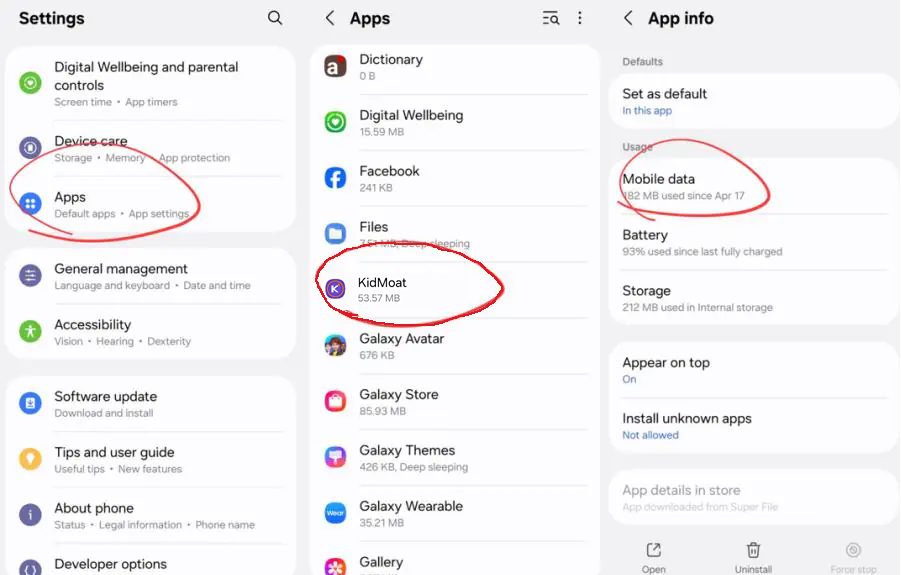
Step 1 — Open KidMoat's mobile data settings
Settings → Apps → KidMoat → Mobile data.
Step 2 — Allow background data and Data saver exemption
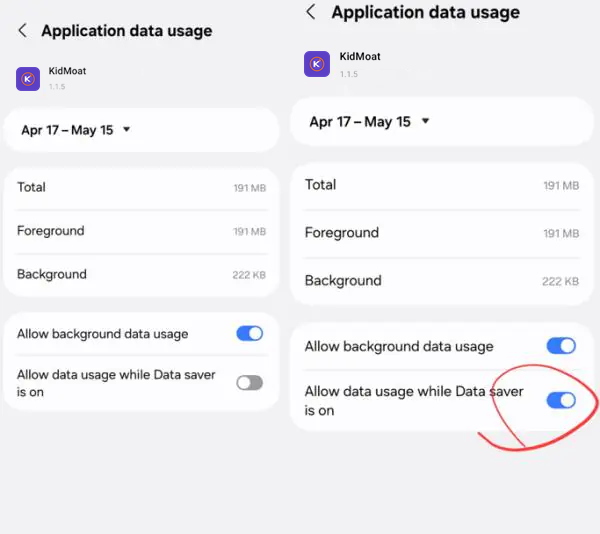
Switch on Allow background data usage and Allow data usage while Data saver is on.
Step 3 — Battery settings: same as Android 13
The battery machinery on Android 14 and 15 matches Android 13, with the same menu names. Follow steps 3, 4 and 5 of the Android 13 section just below: exclude KidMoat from memory cleaning, turn off Put unused apps to sleep and Adaptive battery, and disable auto restarts.
Android 13
Step 1 — Open KidMoat's mobile data settings
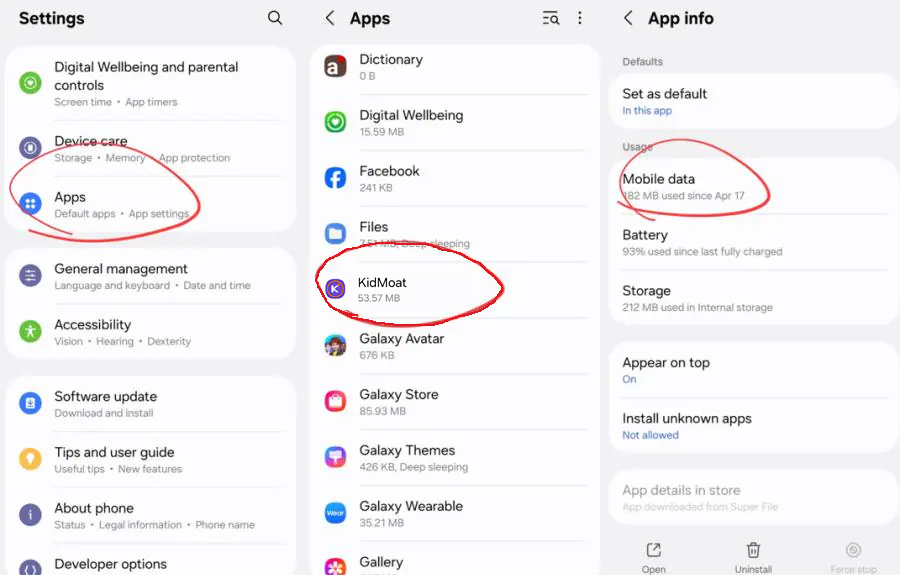
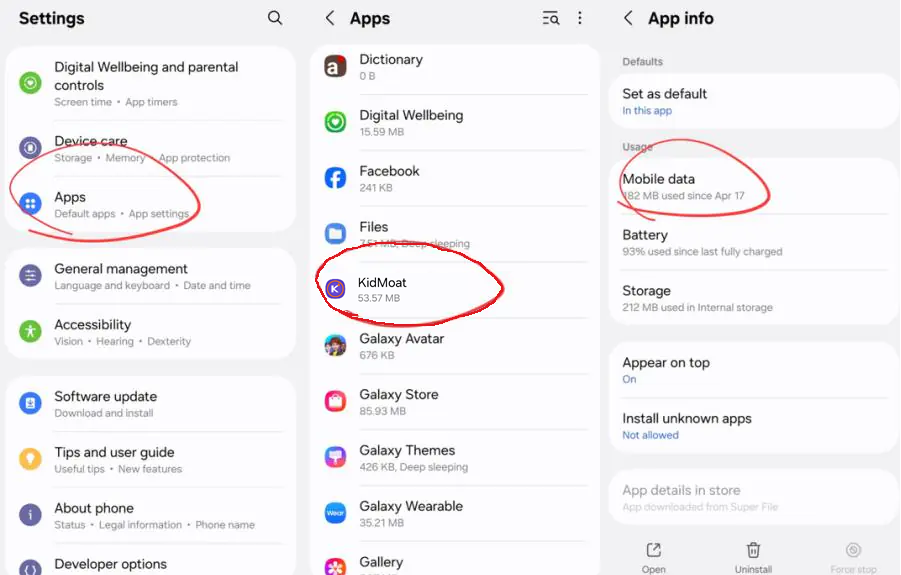
Go to Settings → Apps → KidMoat and tap Mobile data.
Step 2 — Allow background data and Data saver exemption
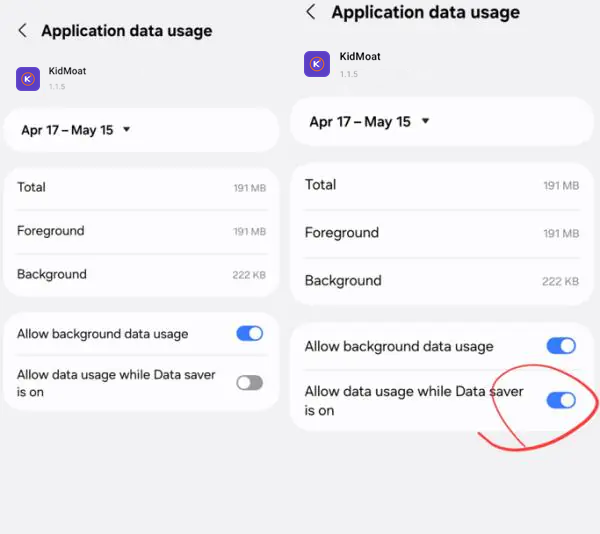
Switch on Allow background data usage and Allow data usage while Data saver is on.
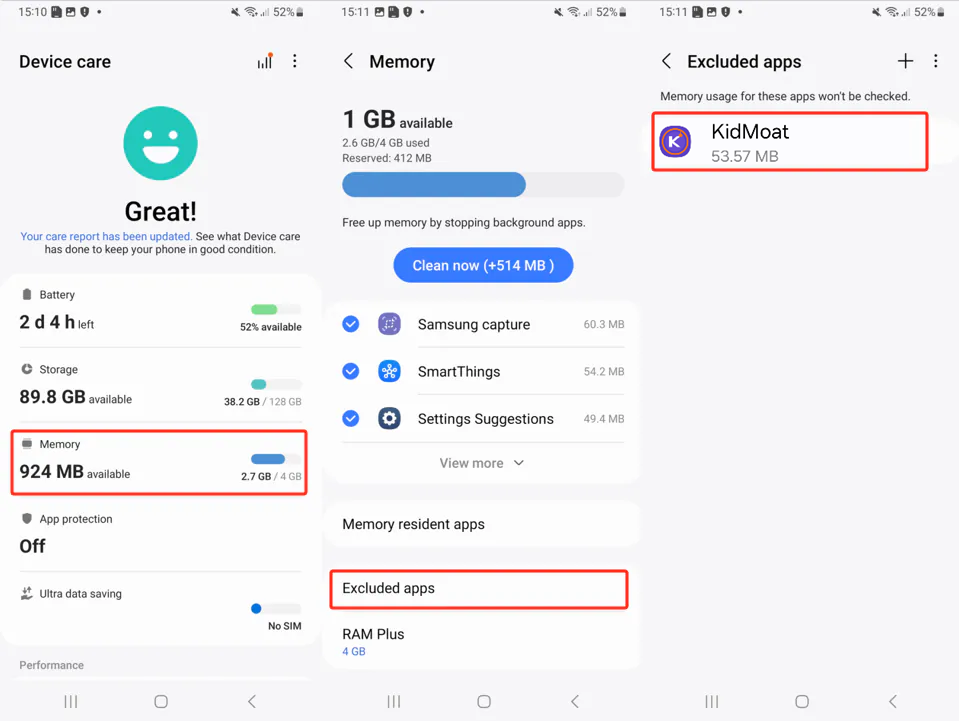
Step 3 — Exclude KidMoat from memory cleaning
Settings → Battery and device care → Memory → Excluded apps → + — add KidMoat.
Step 4 — Stop apps being put to sleep
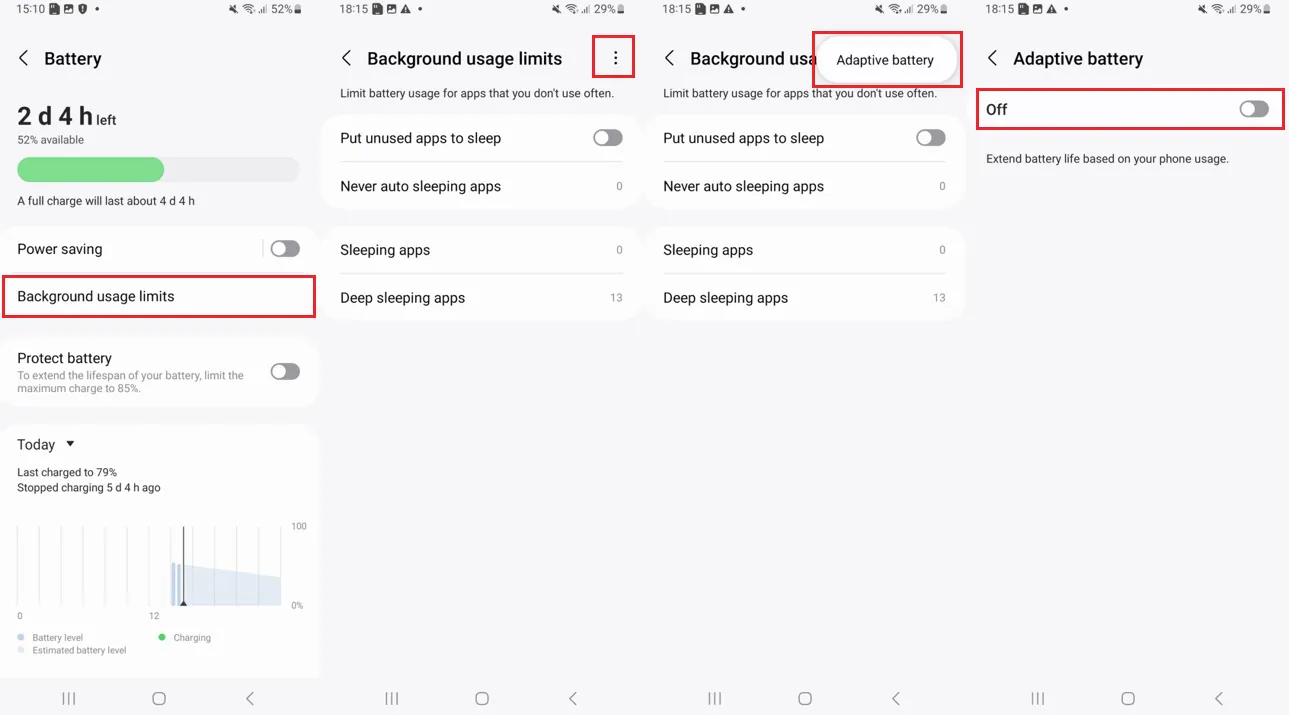
This is the big one on Android 13 and later. Go to Settings → Battery → Background usage limits and turn Put unused apps to sleep off. Then tap ⋮ → Adaptive battery and switch Adaptive battery off too — it learns to limit apps your child "doesn't use", and no child opens KidMoat on purpose.
Step 5 — Switch off automatic restarts
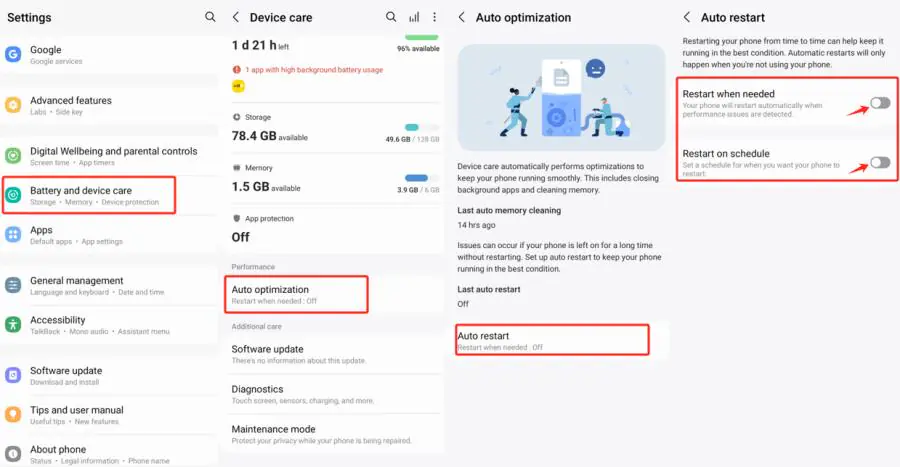
Settings → Battery and device care → Auto optimization → Auto restart — turn off both Restart when needed and Restart on schedule. A phone that restarts at 3 a.m. comes back up with apps closed.
Android 12
Step 1 — Open KidMoat's mobile data settings
Go to Settings → Apps → KidMoat and tap Mobile data under Usage.
Step 2 — Allow background data and Data saver exemption
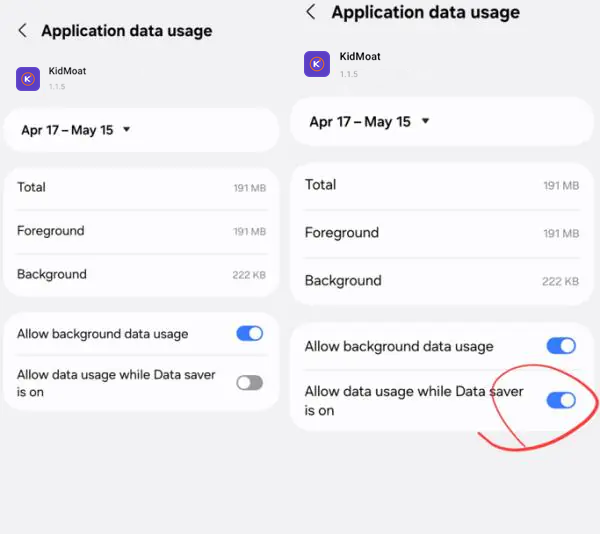
On the data usage screen, switch on both Allow background data usage and Allow data usage while Data saver is on. The first keeps KidMoat reporting between unlocks; the second keeps it reporting even if Data saver is enabled later.
Step 3 — Exclude KidMoat from memory cleaning
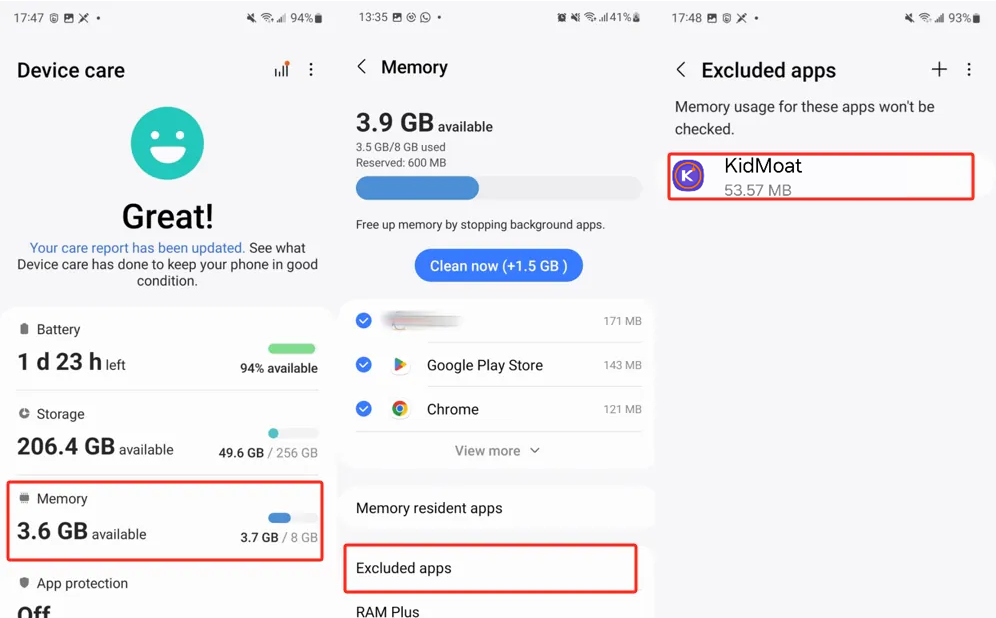
Device care's memory cleaner closes background apps to free RAM. Go to Settings → Battery and device care → Memory → Excluded apps, tap +, and add KidMoat.
Step 4 — Keep Power saving off
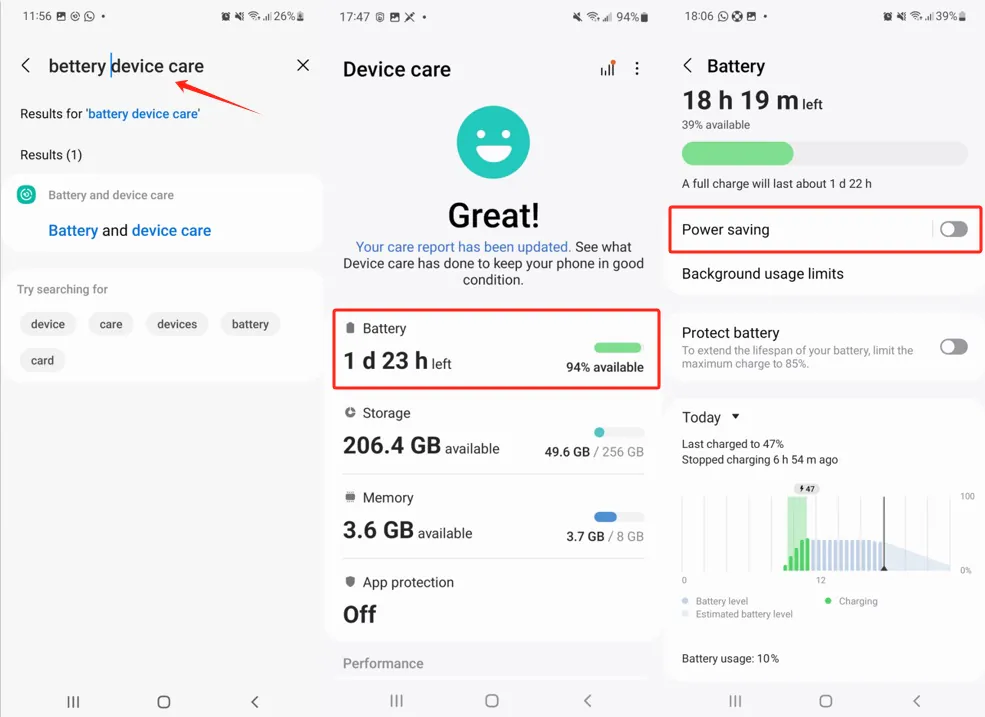
Go to Settings → Battery and device care → Battery (the Settings search box finds it fastest) and make sure Power saving is off. While active, it restricts all background activity.
Step 5 — Switch off Device care automation
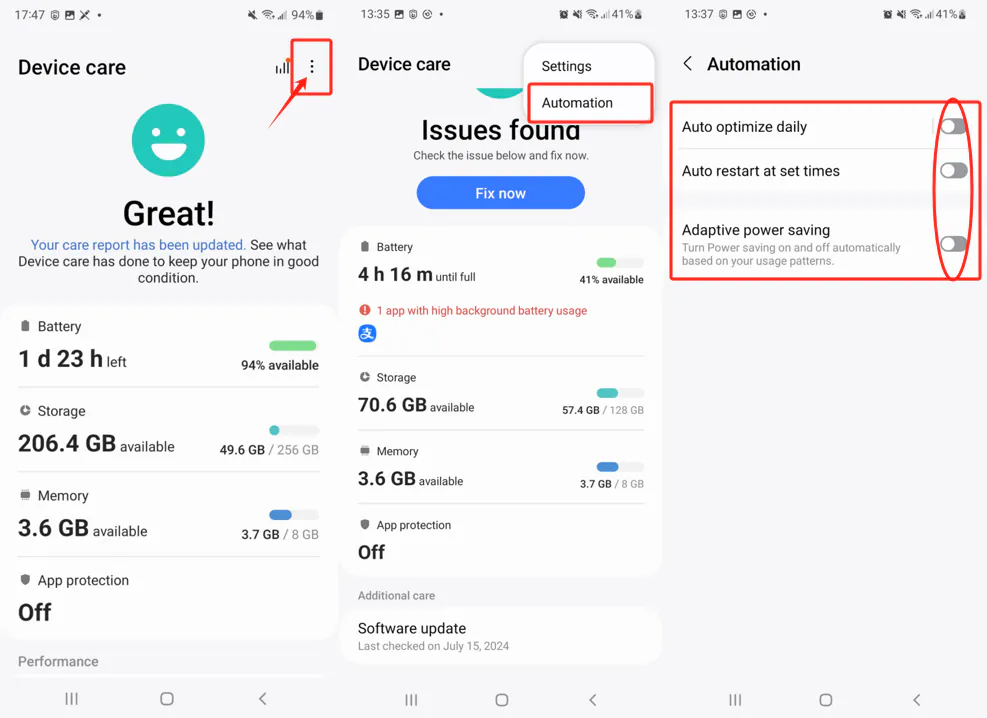
One UI can "optimize" (close apps) daily and restart the phone on a schedule — both kill KidMoat silently. In Settings → Battery and device care, tap the ⋮ menu → Automation, and switch off all three: Auto optimize daily, Auto restart at set times, and Adaptive power saving.
One more setting worth checking
On every One UI version above, KidMoat's own battery mode should be Unrestricted: Settings → Apps → KidMoat → Battery → Unrestricted. Many devices set this automatically during KidMoat's setup, but it takes ten seconds to confirm and it is the single most load-bearing setting on Samsung.
Check it worked
Open your parent dashboard: the child's phone should show online and stay online overnight, with limits enforcing on time and no gaps in reports over the next 48 hours.
One UI updates are known to re-enable sleeping apps and automation. After any major software update on the child's phone, re-check steps 4–5 for your Android version.
Something still off? Start from the overview — How to keep KidMoat running in the background on Android.
Related Posts
How to Keep KidMoat Running in the Background on Android?
Android saves battery by quietly killing apps that run in the background — and a parental control app that has been killed protects no one. Here is why it happens, the settings that stop it, and the exact steps for nine device brands.
How to Keep KidMoat Running in the Background on Huawei?
On Huawei, one screen decides everything: App launch. Set KidMoat to Manage manually with all three launch options on, plus the data and battery settings around it — for HarmonyOS 4 and HarmonyOS 2–3.
How to Keep KidMoat Running in the Background on Motorola?
Motorola runs near-stock Android, so this is a short one: unrestricted battery, background data, notifications on, and Adaptive Battery off. Four steps.
See how KidMoat works
Set the day’s limit together, keep distractions out of study hours, and switch to Exam Day in one tap. Works whether the phone is theirs or yours.
See how it works