How to Keep KidMoat Running in the Background on Huawei?
Huawei devices run HarmonyOS, and one screen there decides almost everything about whether KidMoat survives: Launch manager (called App launch on HarmonyOS 2 and 3). Its default — Manage automatically — hands Huawei's power engine permission to close KidMoat whenever it likes. The fix is to manage KidMoat manually with every launch option on, plus a handful of data and battery settings around it.
Use the section for the child device's HarmonyOS version (Settings → About phone).
All of these settings live on the child's Huawei — the phone with the KidMoat child app on it.
HarmonyOS 4
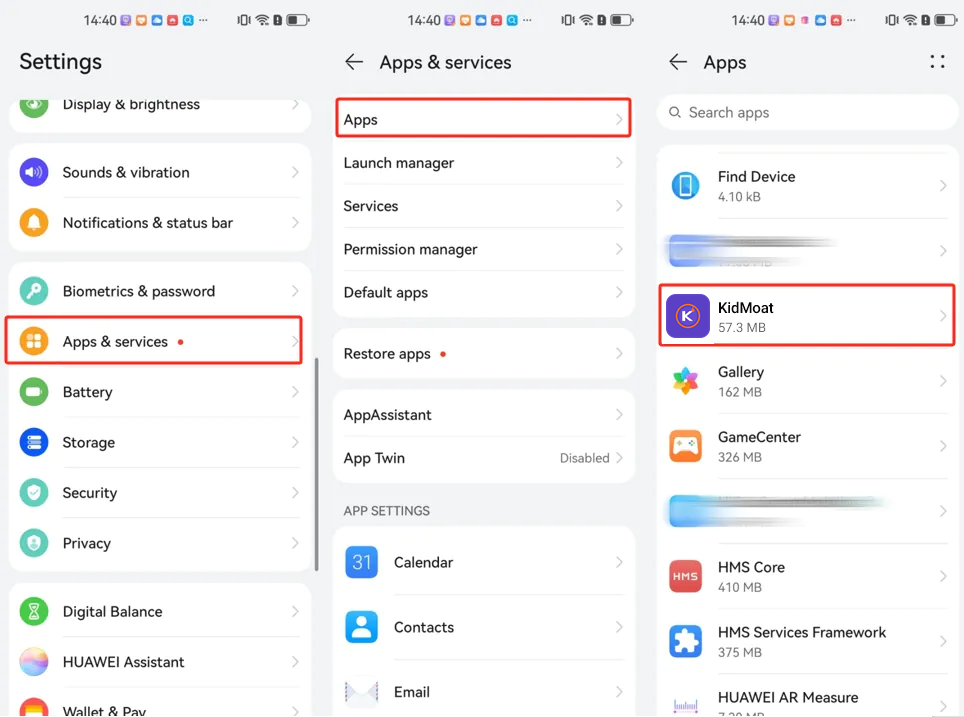
Step 1 — Find KidMoat in Apps
Settings → Apps & services → Apps → KidMoat.
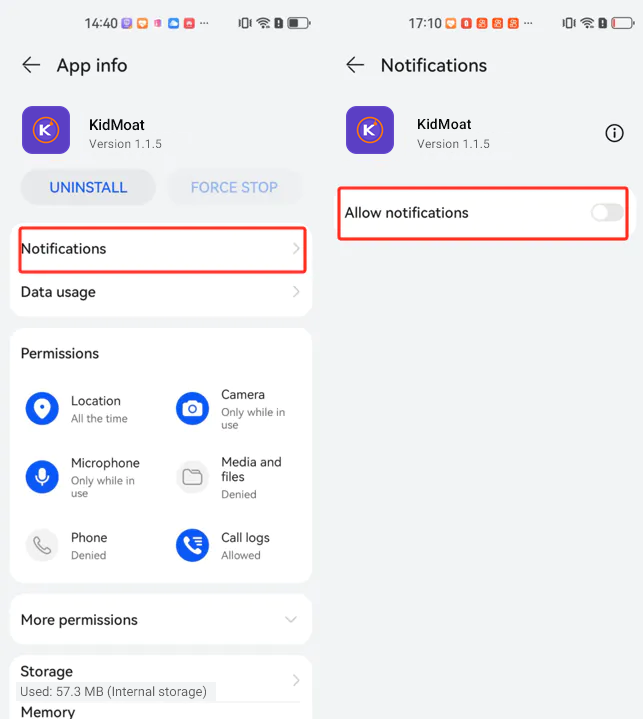
Step 2 — Allow notifications
Open Notifications and switch Allow notifications on.
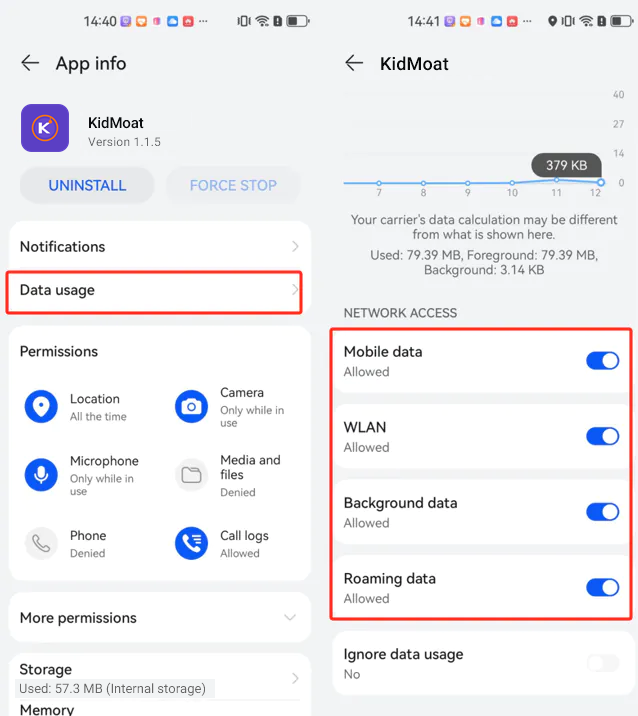
Step 3 — Allow all network access
Open Data usage and keep all four allowed: Mobile data, WLAN, Background data, Roaming data.
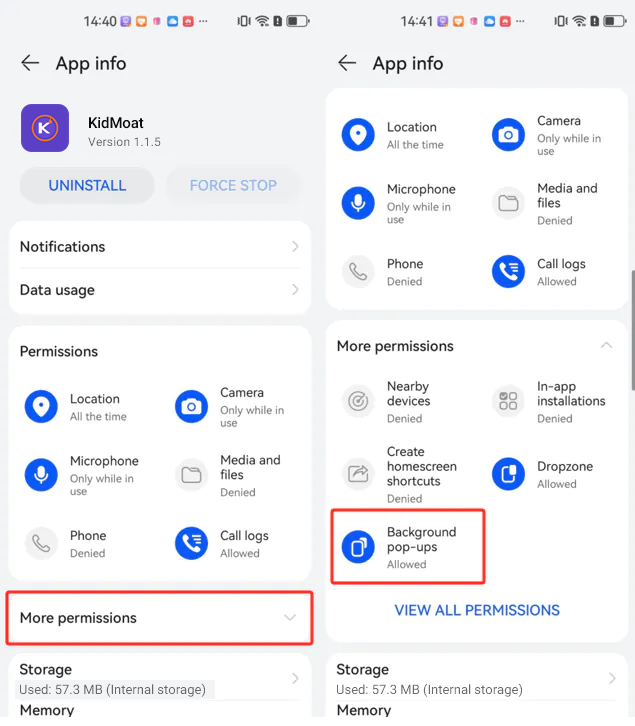
Step 4 — Background pop-ups allowed
On App info, expand More permissions and confirm Background pop-ups is Allowed.
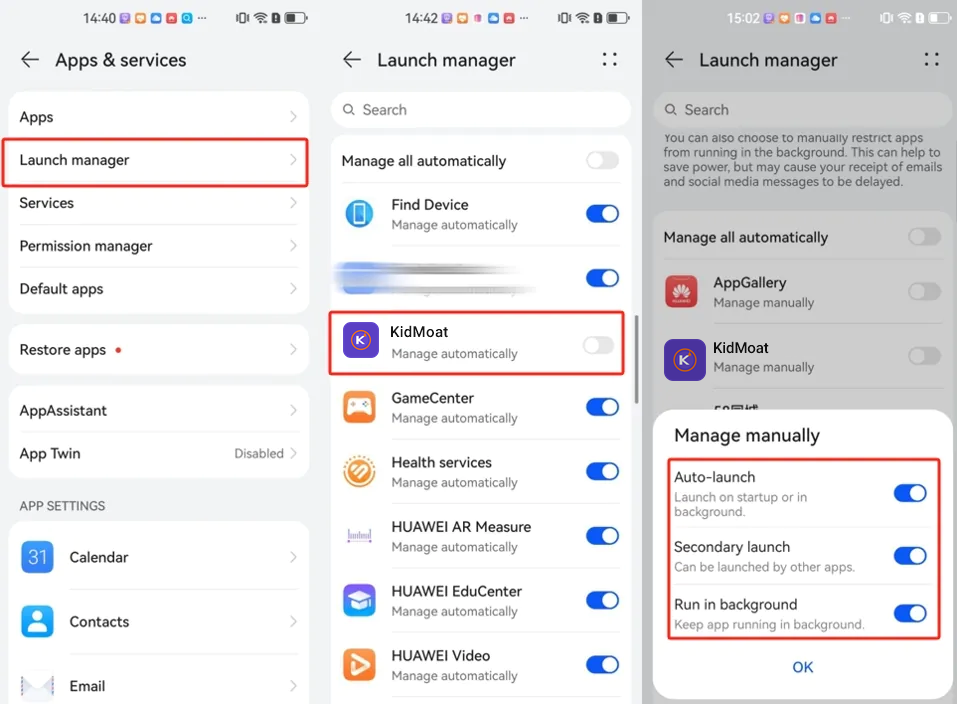
Step 5 — Launch manager: Manage manually (the critical one)
Go to Settings → Apps & services → Launch manager, switch off KidMoat's Manage automatically toggle, and in the Manage manually dialog switch on all three: Auto-launch, Secondary launch, Run in background. Tap OK. This single screen is the main reason apps die on Huawei; all three toggles must be on.
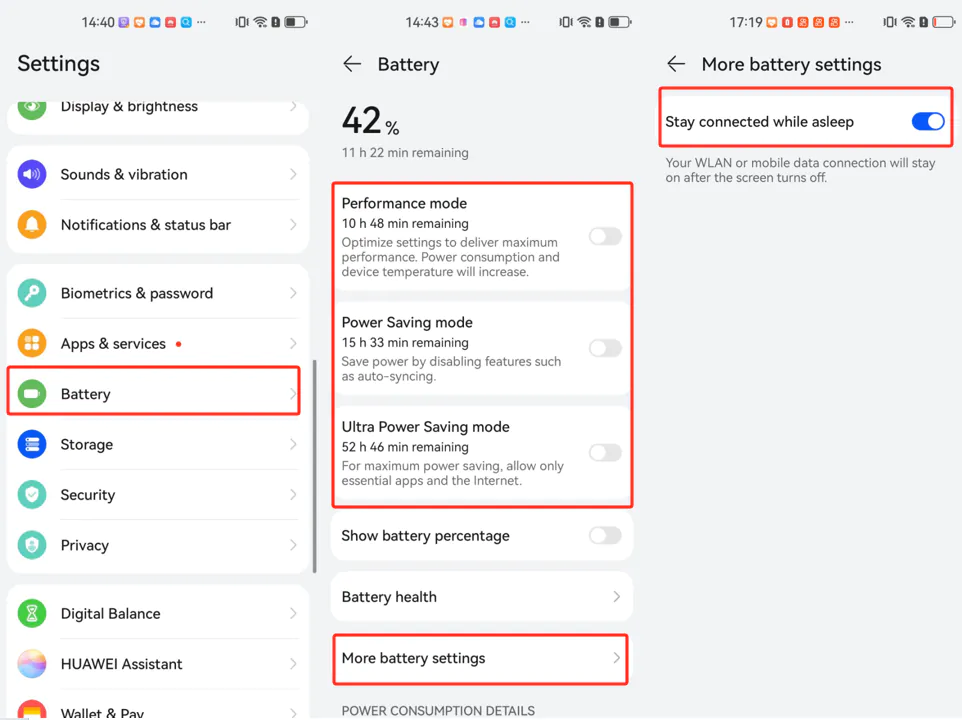
Step 6 — Battery: power modes off, stay connected while asleep
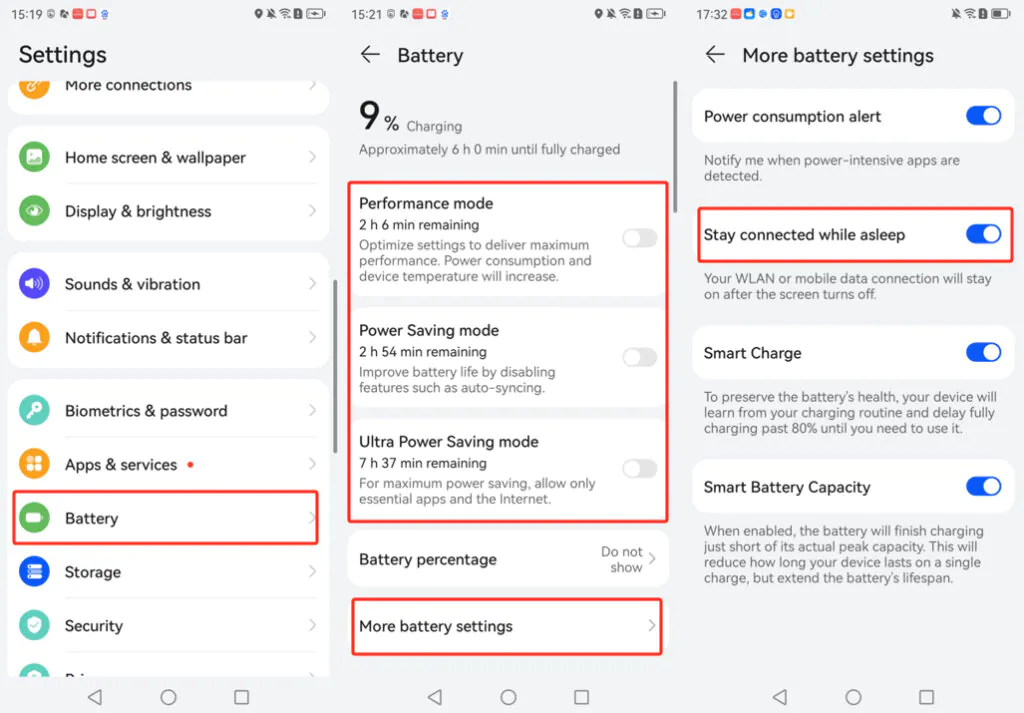
In Settings → Battery: keep Performance mode, Power Saving mode and Ultra Power Saving mode all off. Then open More battery settings and make sure Stay connected while asleep is on — otherwise the phone drops its connection whenever the screen turns off.
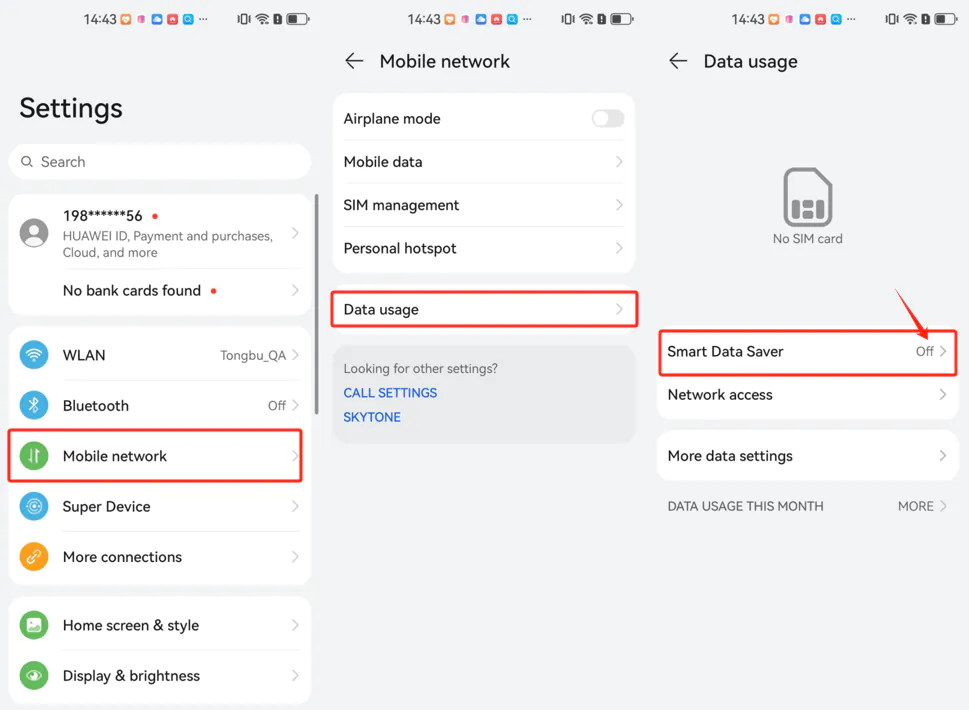
Step 7 — Smart Data Saver off
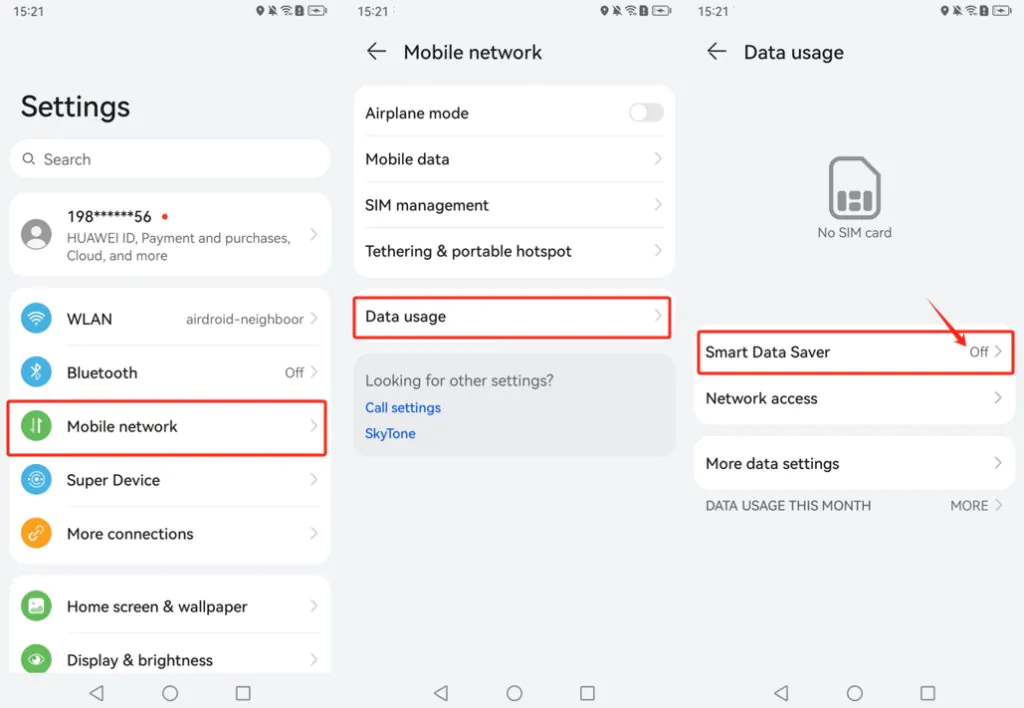
Settings → Mobile network → Data usage → Smart Data Saver — off. It blocks background data phone-wide.
HarmonyOS 2 and 3
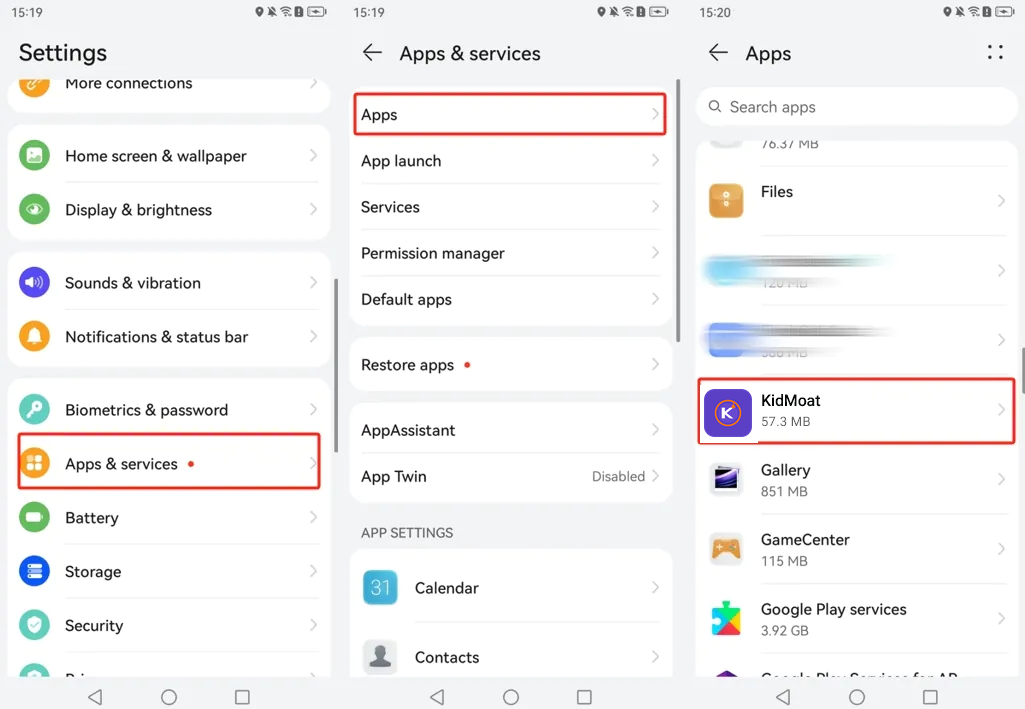
Step 1 — Find KidMoat in Apps
Go to Settings → Apps & services → Apps and tap KidMoat.
Step 2 — Allow notifications
On KidMoat's App info page, open Notifications and switch Allow notifications on.
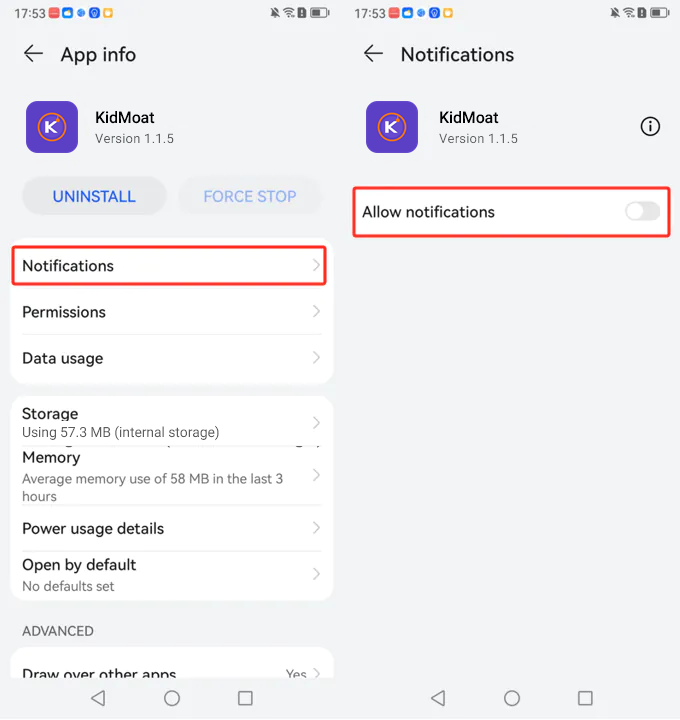
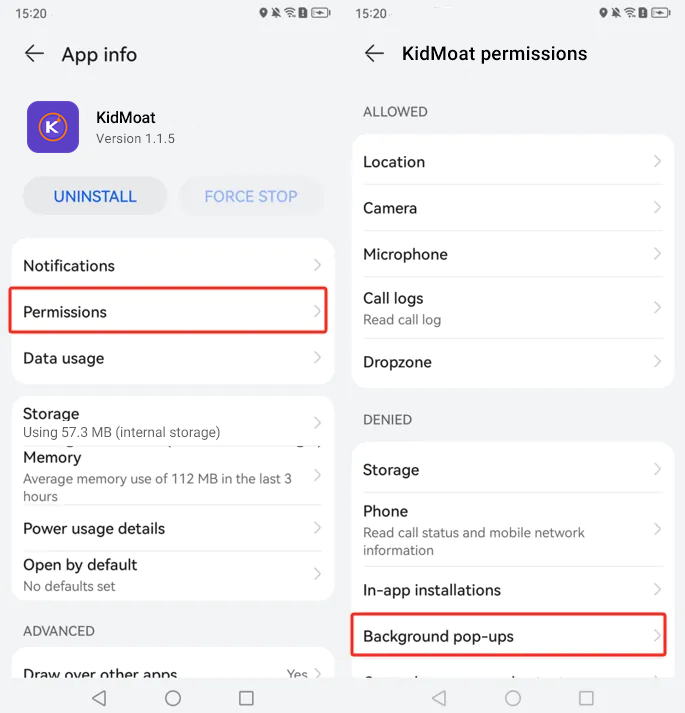
Step 3 — Allow Background pop-ups
Back on App info, open Permissions and allow Background pop-ups. Without it, KidMoat's limit screens cannot appear while it runs in the background.
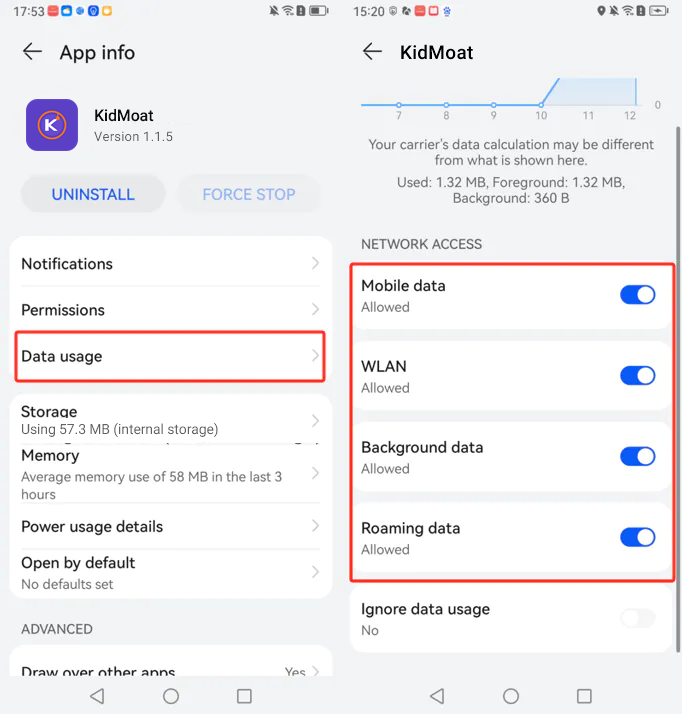
Step 4 — Allow all network access
Open Data usage on App info and make sure all four are allowed: Mobile data, WLAN, Background data and Roaming data.
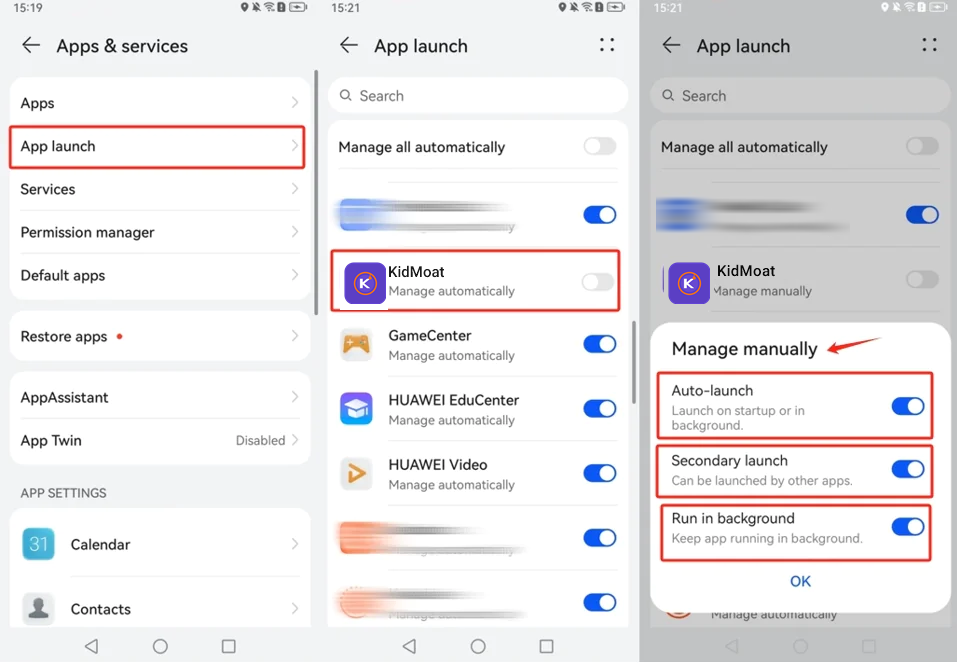
Step 5 — App launch: Manage manually (the critical one)
Go to Settings → Apps & services → App launch, find KidMoat, and switch off its Manage automatically toggle. In the Manage manually dialog that appears, switch on all three — Auto-launch, Secondary launch and Run in background — then tap OK.
Step 6 — Battery: power modes off, stay connected while asleep
In Settings → Battery: keep Performance mode, Power Saving mode and Ultra Power Saving mode all off. Then open More battery settings and make sure Stay connected while asleep is on.
Step 7 — Smart Data Saver off
Go to Settings → Mobile network → Data usage and check Smart Data Saver is off.
Check it worked
The child's phone should show online in your parent dashboard and stay online overnight, with no gaps in reports over 48 hours.
HarmonyOS updates can flip Launch manager back to "Manage automatically" — it is the first thing to re-check if the device starts dropping offline after an update.
Something still off? Start from the overview — How to keep KidMoat running in the background on Android.
Related Posts
How to Keep KidMoat Running in the Background on Android?
Android saves battery by quietly killing apps that run in the background — and a parental control app that has been killed protects no one. Here is why it happens, the settings that stop it, and the exact steps for nine device brands.
How to Keep KidMoat Running in the Background on Motorola?
Motorola runs near-stock Android, so this is a short one: unrestricted battery, background data, notifications on, and Adaptive Battery off. Four steps.
How to Keep KidMoat Running in the Background on OnePlus?
OxygenOS quietly reverts battery settings more than any other brand, so the three steps here — Don't optimize, Unrestricted data, and knowing where Accessibility lives — are worth re-checking monthly.
See how KidMoat works
Set the day’s limit together, keep distractions out of study hours, and switch to Exam Day in one tap. Works whether the phone is theirs or yours.
See how it works