How to Keep KidMoat Running in the Background on realme?
realme UI looks close to stock Android, but it keeps realme's own app-standby machinery underneath — an App standby optimizer that suspends "power-intensive" apps and its own power-saving modes on top of Android's. These seven steps cover both layers. They apply to realme UI on Android 12 and above.
All of these settings live on the child's realme — the phone with the KidMoat child app on it.
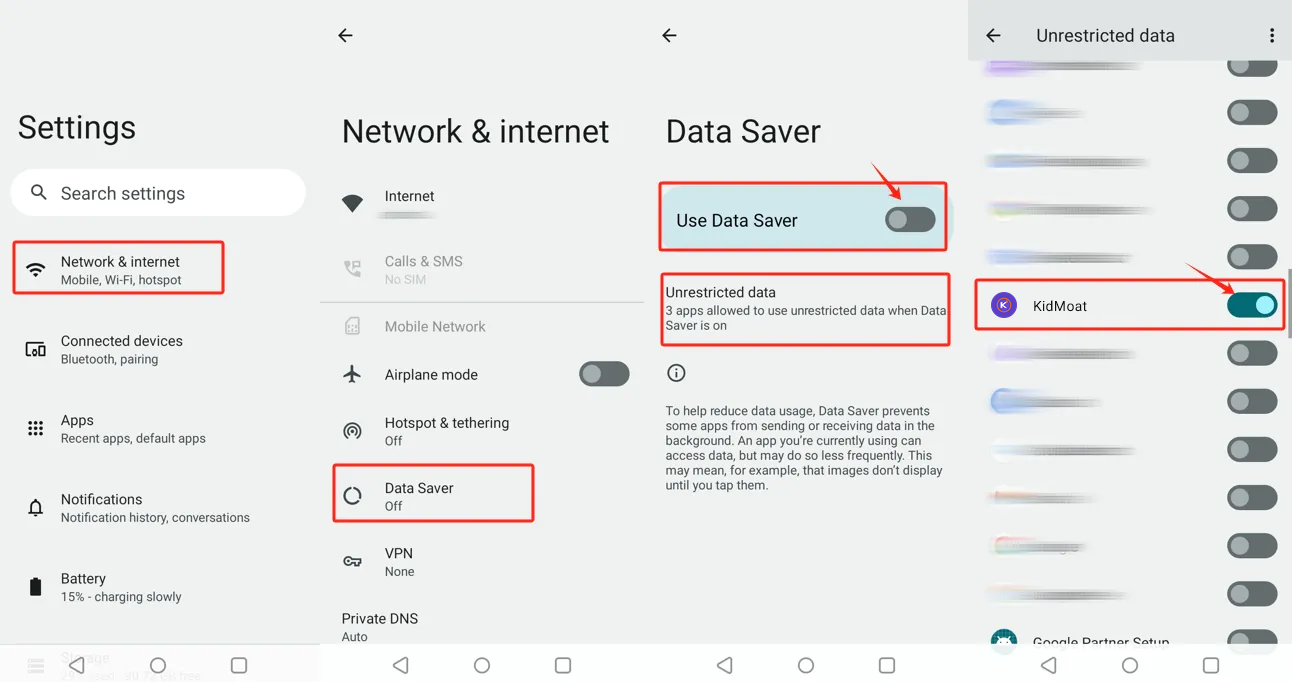
Step 1 — Data Saver exemption
Go to Settings → Network & internet → Data Saver. Best is to leave Use Data Saver off; either way, open Unrestricted data and switch KidMoat on so Data Saver can never cut its background connection.
Step 2 — Keep the connection alive
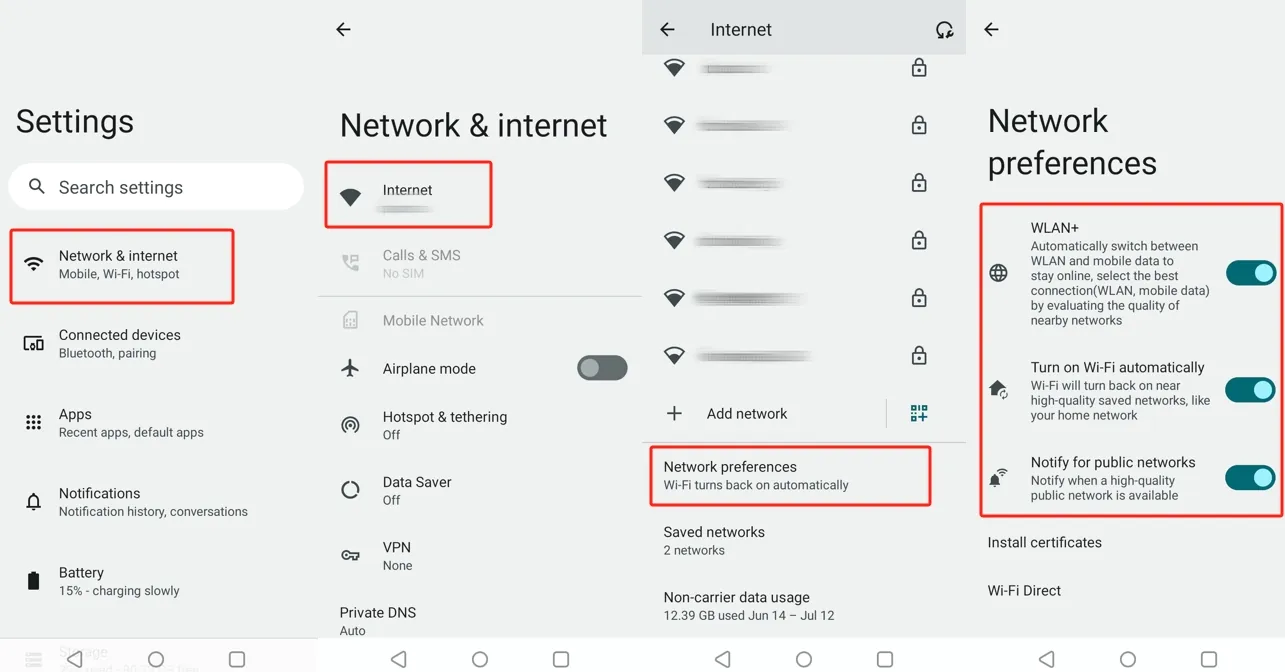
In Settings → Network & internet → Internet → Network preferences, switch on WLAN+, Turn on Wi-Fi automatically and Notify for public networks. These keep the child's device online — and a device that is online is a device KidMoat can report from.
Step 3 — Power saving off, open App standby optimizer
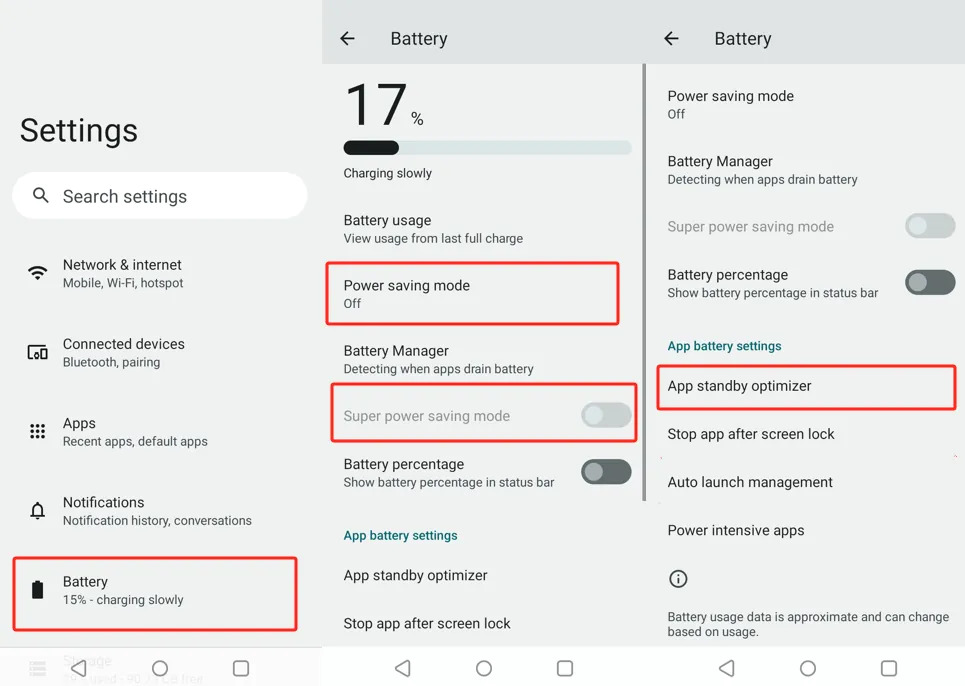
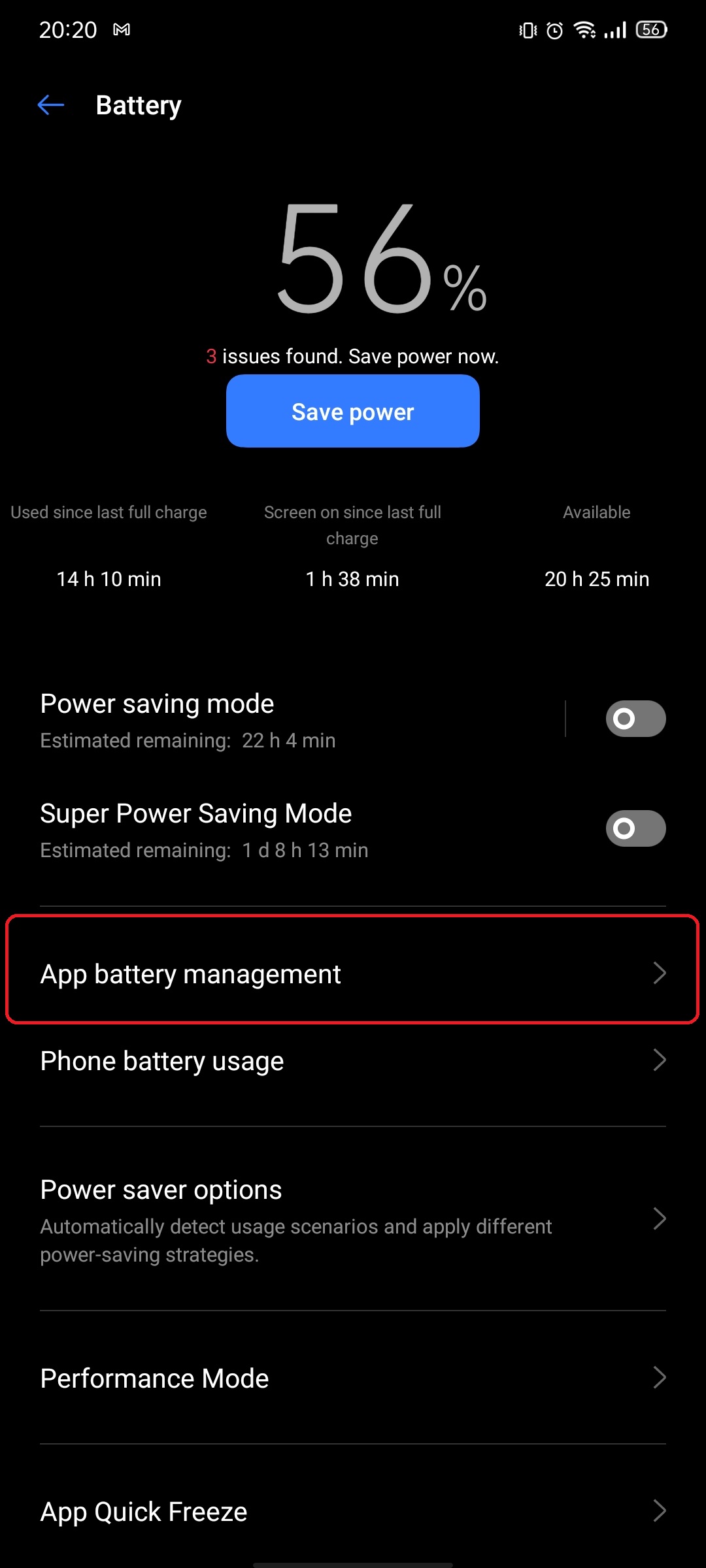
Go to Settings → Battery: check Power saving mode and Super power saving mode are both off, then open App standby optimizer under App battery settings.
Step 4 — Take KidMoat out of standby optimization
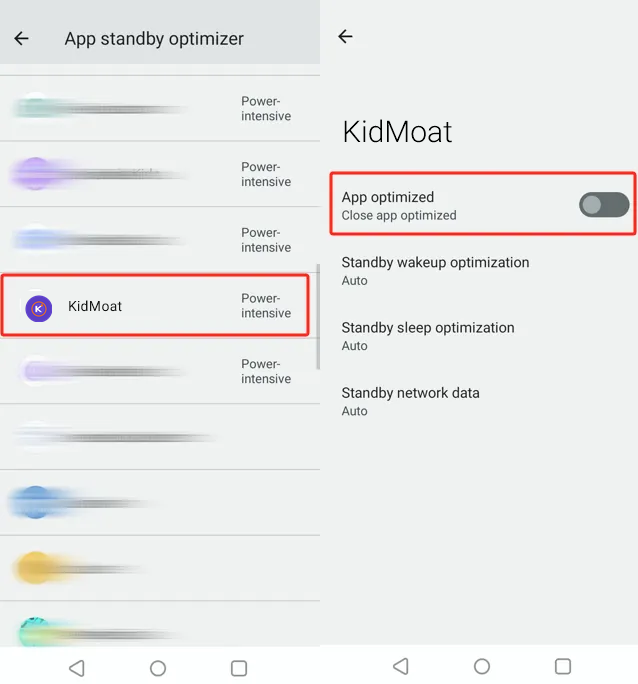
In App standby optimizer, tap KidMoat and switch its App optimized toggle off. This stops realme's standby engine from suspending KidMoat when the phone sits idle.
Step 5 — Allow auto-launch
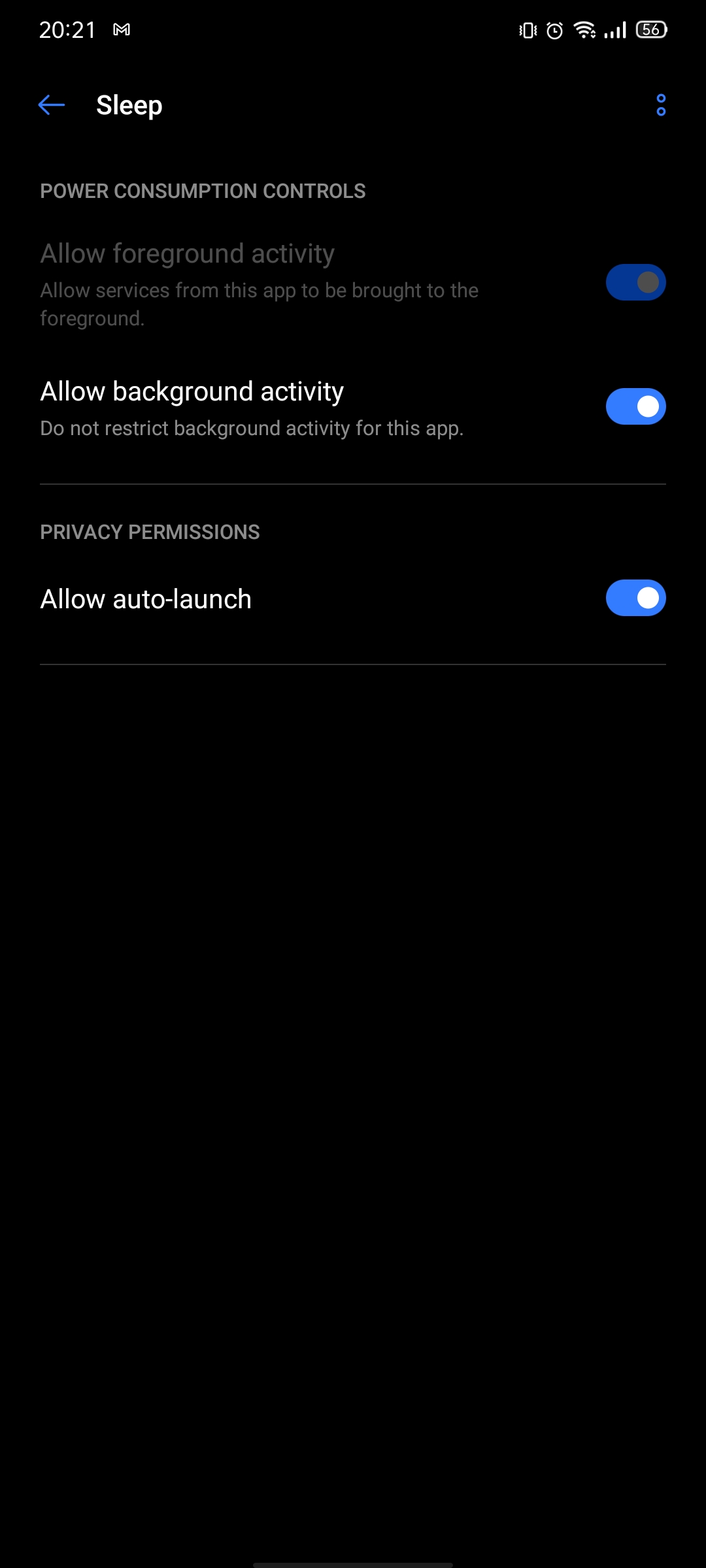
Auto-launch is what lets KidMoat restart after reboots and background clears. Depending on your realme UI version it lives in one of two places on the Settings → Battery screen: as Auto launch management directly, or inside App battery management — open it, tap the app, and switch Allow auto-launch on (keep Allow background activity on while you are there).
Step 6 — Open KidMoat's App info
Go to Settings → Apps → See all apps → KidMoat. The four entries you need are Notifications, Permissions, Mobile data & Wi-Fi and Battery.
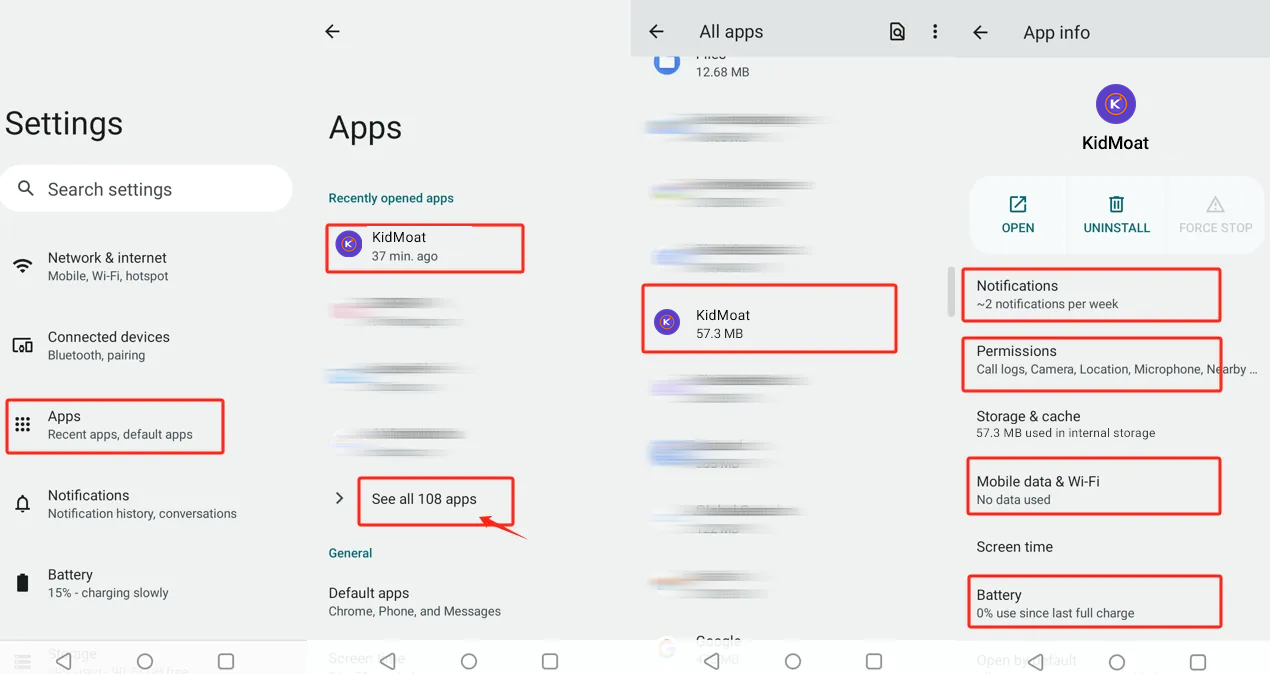
Step 7 — Notifications, background data, unrestricted battery
Work through the four entries:
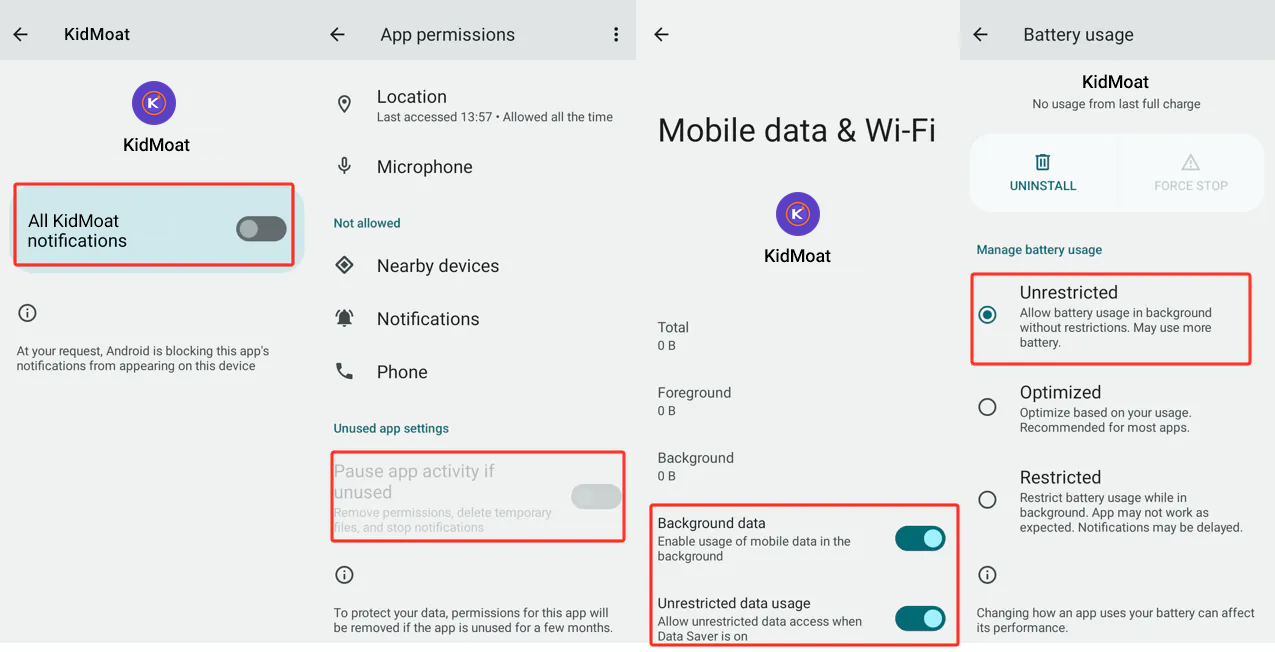
- Notifications — switch All KidMoat notifications on.
- Permissions — turn Pause app activity if unused off, so Android never strips KidMoat's permissions for "inactivity".
- Mobile data & Wi-Fi — keep Background data and Unrestricted data usage both on.
- Battery — set battery usage to Unrestricted.
Check it worked
The child's phone should show online in your parent dashboard and stay online overnight, with no gaps in reports over 48 hours.
realme UI updates can quietly re-optimize apps. After a system update on the child's phone, re-check the App standby optimizer (step 4) and the battery Unrestricted setting (step 7) first.
Something still off? Start from the overview — How to keep KidMoat running in the background on Android.
Related Posts
How to Keep KidMoat Running in the Background on Android?
Android saves battery by quietly killing apps that run in the background — and a parental control app that has been killed protects no one. Here is why it happens, the settings that stop it, and the exact steps for nine device brands.
How to Keep KidMoat Running in the Background on Huawei?
On Huawei, one screen decides everything: App launch. Set KidMoat to Manage manually with all three launch options on, plus the data and battery settings around it — for HarmonyOS 4 and HarmonyOS 2–3.
How to Keep KidMoat Running in the Background on Motorola?
Motorola runs near-stock Android, so this is a short one: unrestricted battery, background data, notifications on, and Adaptive Battery off. Four steps.
See how KidMoat works
Set the day’s limit together, keep distractions out of study hours, and switch to Exam Day in one tap. Works whether the phone is theirs or yours.
See how it works