How to Keep KidMoat Running in the Background on OPPO?
OPPO phones run ColorOS, which manages apps' network access, battery use and auto-launch as three separate systems — and all three default to restricting a newly installed app. These seven steps open each gate for KidMoat. They apply to ColorOS on Android 12 and above; a menu name may vary slightly by version, but the structure is the same.
All of these settings live on the child's OPPO — the phone with the KidMoat child app on it.
Step 1 — Open Data usage
Go to Settings → SIM card & mobile data → Data usage. The two entries you need here are Network permissions and Data saving.
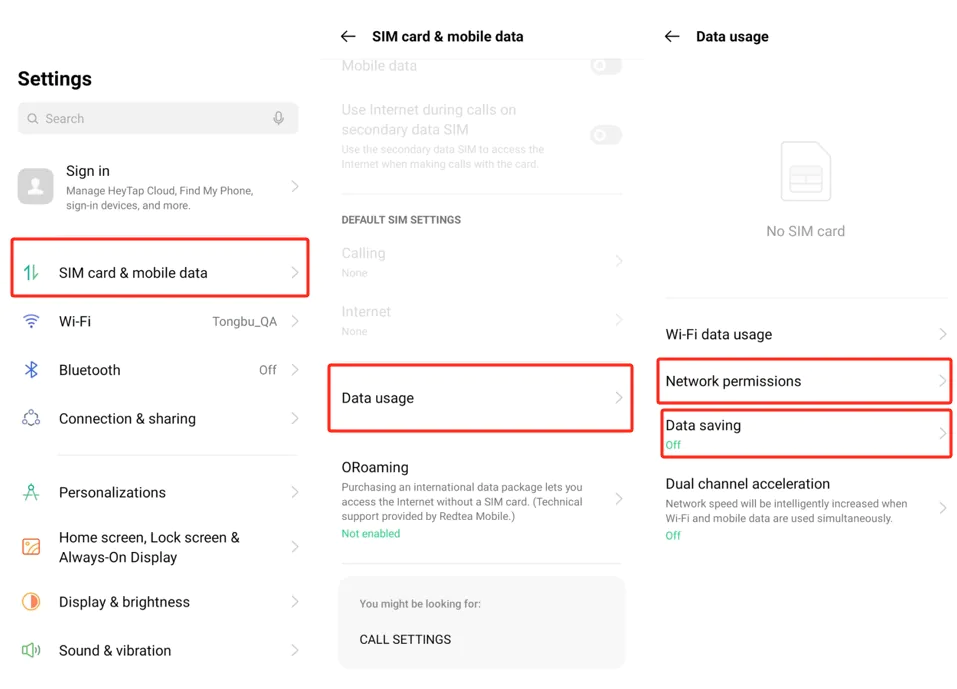
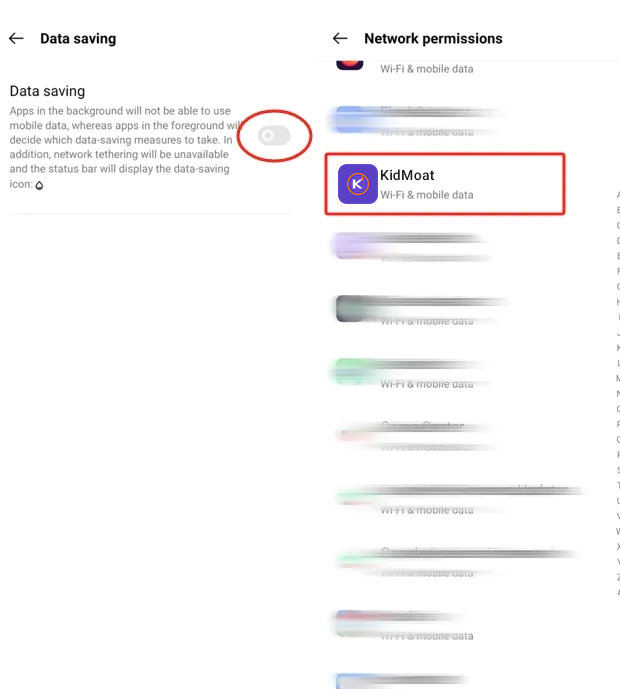
Step 2 — Data saving off, full network permissions
Keep the Data saving toggle off — while on, background apps lose mobile data entirely. Then open Network permissions and make sure KidMoat is set to Wi-Fi & mobile data.
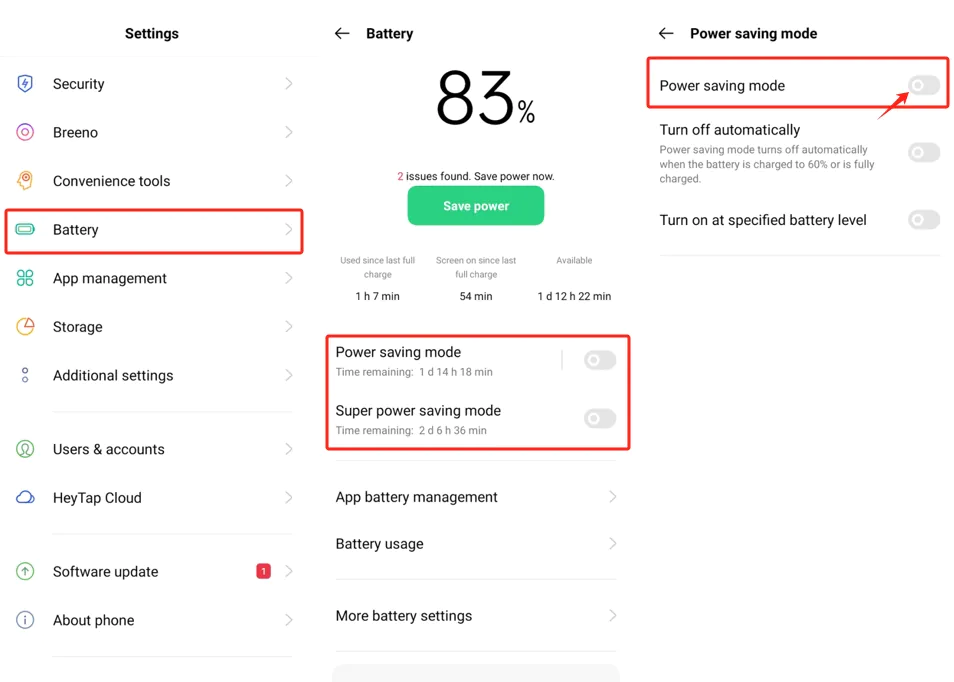
Step 3 — Power saving modes off
Go to Settings → Battery and keep both Power saving mode and Super power saving mode off, including their auto-turn-on options.
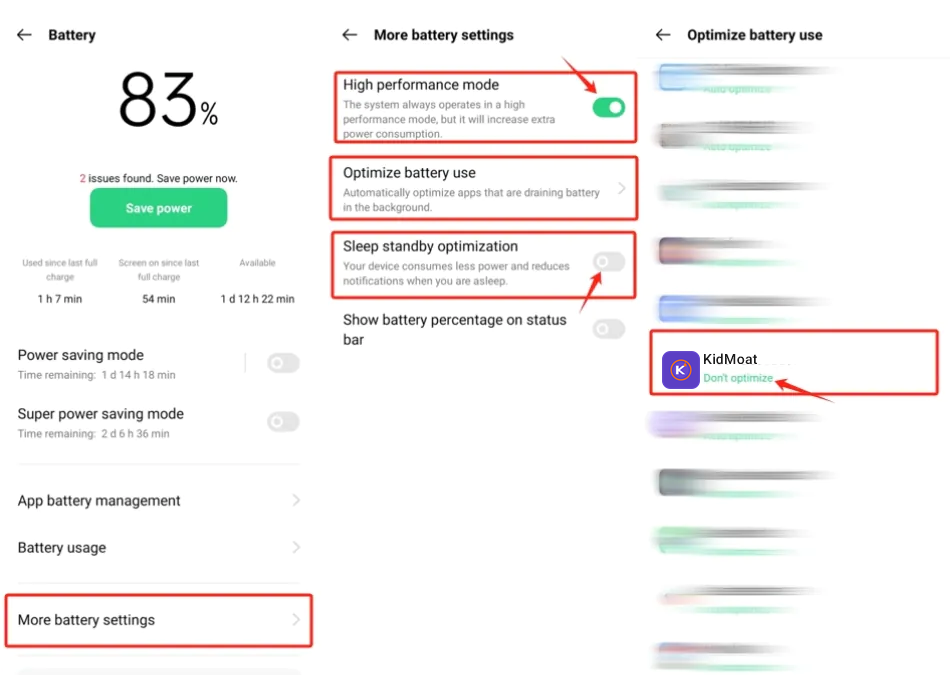
Step 4 — Don't optimize KidMoat
In Settings → Battery → More battery settings: turn High performance mode on, switch Sleep standby optimization off (it cuts background activity and notifications overnight — exactly when KidMoat should be watching), then open Optimize battery use and set KidMoat to Don't optimize.
Step 5 — Open KidMoat in App management
Go to Settings → App management → App list and tap KidMoat.
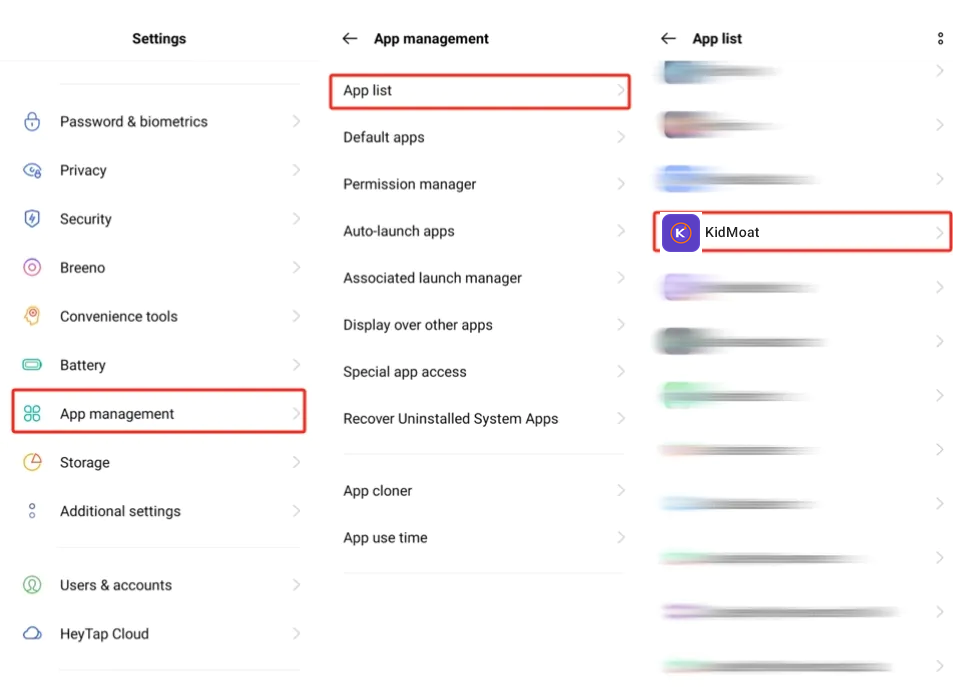
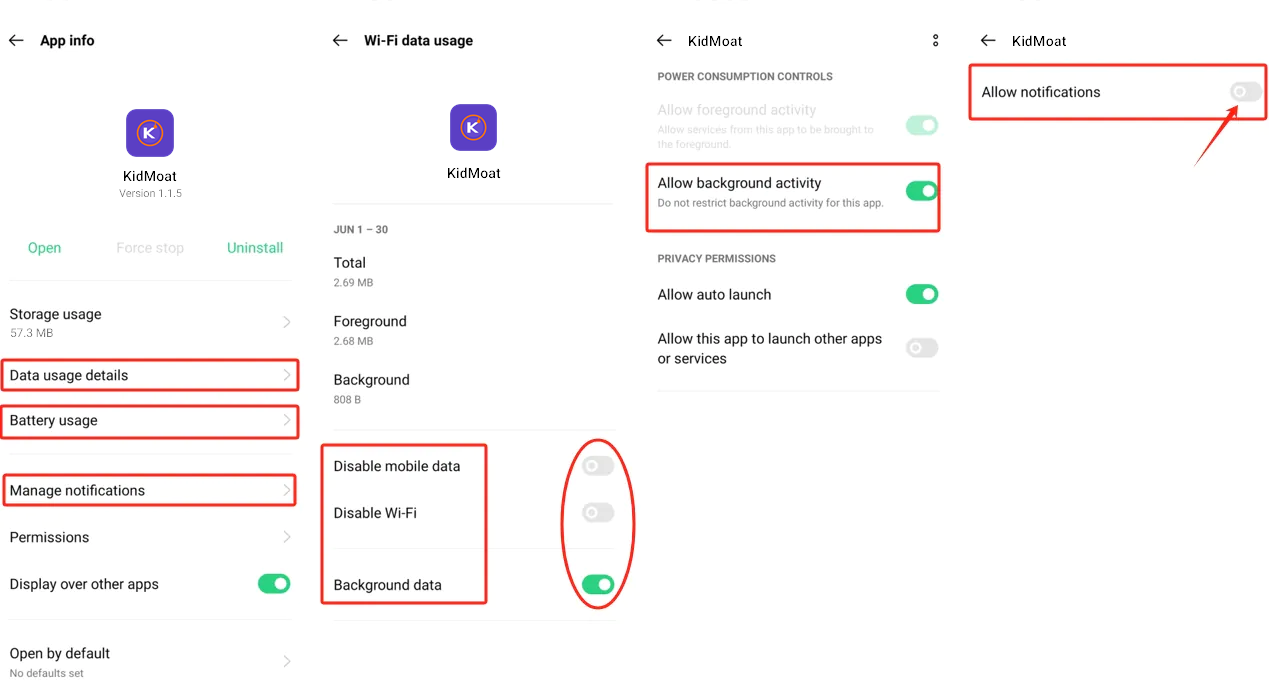
Step 6 — Background data, background activity, notifications
From KidMoat's App info, work through three entries:
- Data usage details — keep Background data on (and leave Disable mobile data / Disable Wi-Fi off).
- Battery usage — under Power consumption controls, switch on Allow background activity and Allow auto launch.
- Manage notifications — switch Allow notifications on.
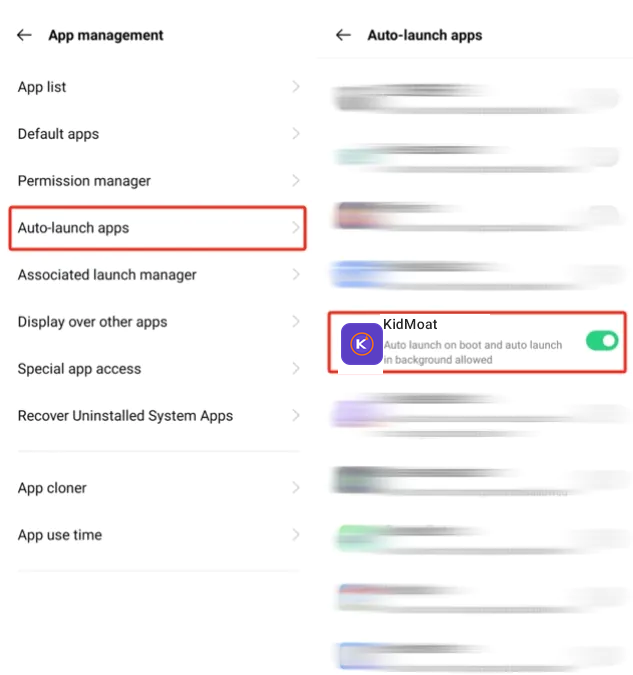
Step 7 — Auto-launch apps
Finally, go to Settings → App management → Auto-launch apps and switch KidMoat on. It should read "Auto launch on boot and auto launch in background allowed" — that is what brings KidMoat back after restarts.
Check it worked
The child's phone should show online in your parent dashboard and stay online overnight, with no gaps in reports over 48 hours.
ColorOS updates can reset auto-launch and battery optimization. After a system update on the child's phone, re-check steps 4 and 7 first.
Something still off? Start from the overview — How to keep KidMoat running in the background on Android.
Related Posts
How to Keep KidMoat Running in the Background on Android?
Android saves battery by quietly killing apps that run in the background — and a parental control app that has been killed protects no one. Here is why it happens, the settings that stop it, and the exact steps for nine device brands.
How to Keep KidMoat Running in the Background on Huawei?
On Huawei, one screen decides everything: App launch. Set KidMoat to Manage manually with all three launch options on, plus the data and battery settings around it — for HarmonyOS 4 and HarmonyOS 2–3.
How to Keep KidMoat Running in the Background on Motorola?
Motorola runs near-stock Android, so this is a short one: unrestricted battery, background data, notifications on, and Adaptive Battery off. Four steps.
See how KidMoat works
Set the day’s limit together, keep distractions out of study hours, and switch to Exam Day in one tap. Works whether the phone is theirs or yours.
See how it works